Integrating and transcribing audio files
There are several ways to incorporate information from external sources into a chat. One option is to use knowledge basesknowledge databases. Another option is to use websites or documents. This process is already described in a separate manual entryseparate manual entry.In a chat, you can include information from external sources in a variety of ways. On the one hand, there is the option of to use. On the other hand, there is the option to use websites or documents. This procedure is already being used in a described.
In this article, we would like to focus specifically on the use case of uploading, transcribing, and using audio files.In this article, we would like to specifically address the use case of uploading, transcribing and using audio files.
Selecting and uploading audio filesSelect and upload audio files
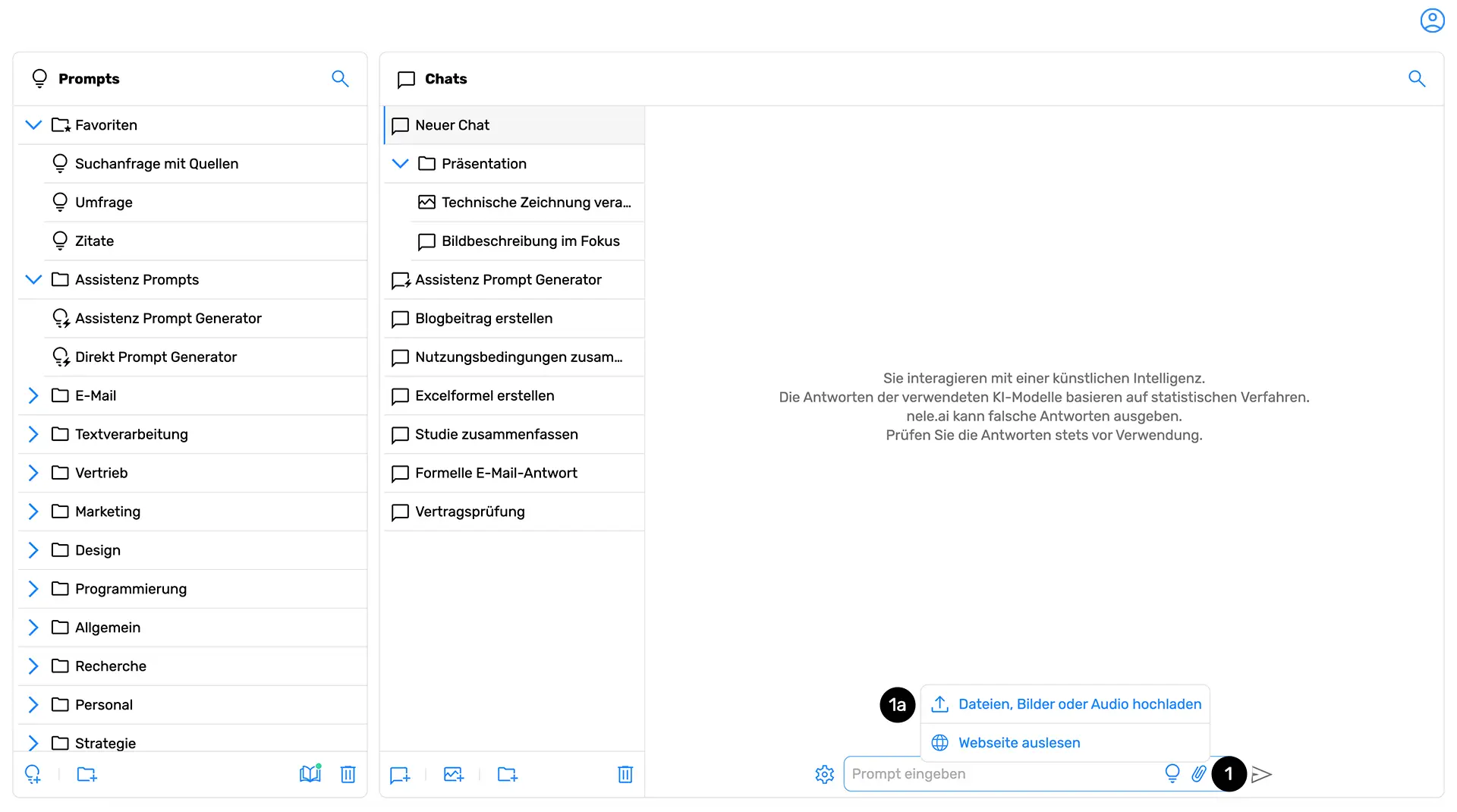
To add an audio file to the conversation, first click the paperclip icon in the chat (1). A menu will open where you can then select "Upload files, images, or audio" (1a).If you want to add an audio file to the conversation history, first click on the paperclip icon in the chat . A menu opens in which you can then “upload files, images or audio” select.
Please note the following:Note the following here:
- The maximum size per integrated audio file is 200 MB, with a maximum duration of 120 minutes.
- The ability to use audio files must be enabled by your administrator. If this has not been done, you will only see the "Upload files or images" button instead of "Upload files, images, or audio" after clicking the paperclip icon. In this case, please contact your administrator.
After clicking "Upload files, images, or audio," proceed to select a file from your computer or mobile device and confirm your selection.After clicking “Upload files, images, or audio,” proceed to select a file from your computer or mobile device and confirm it.
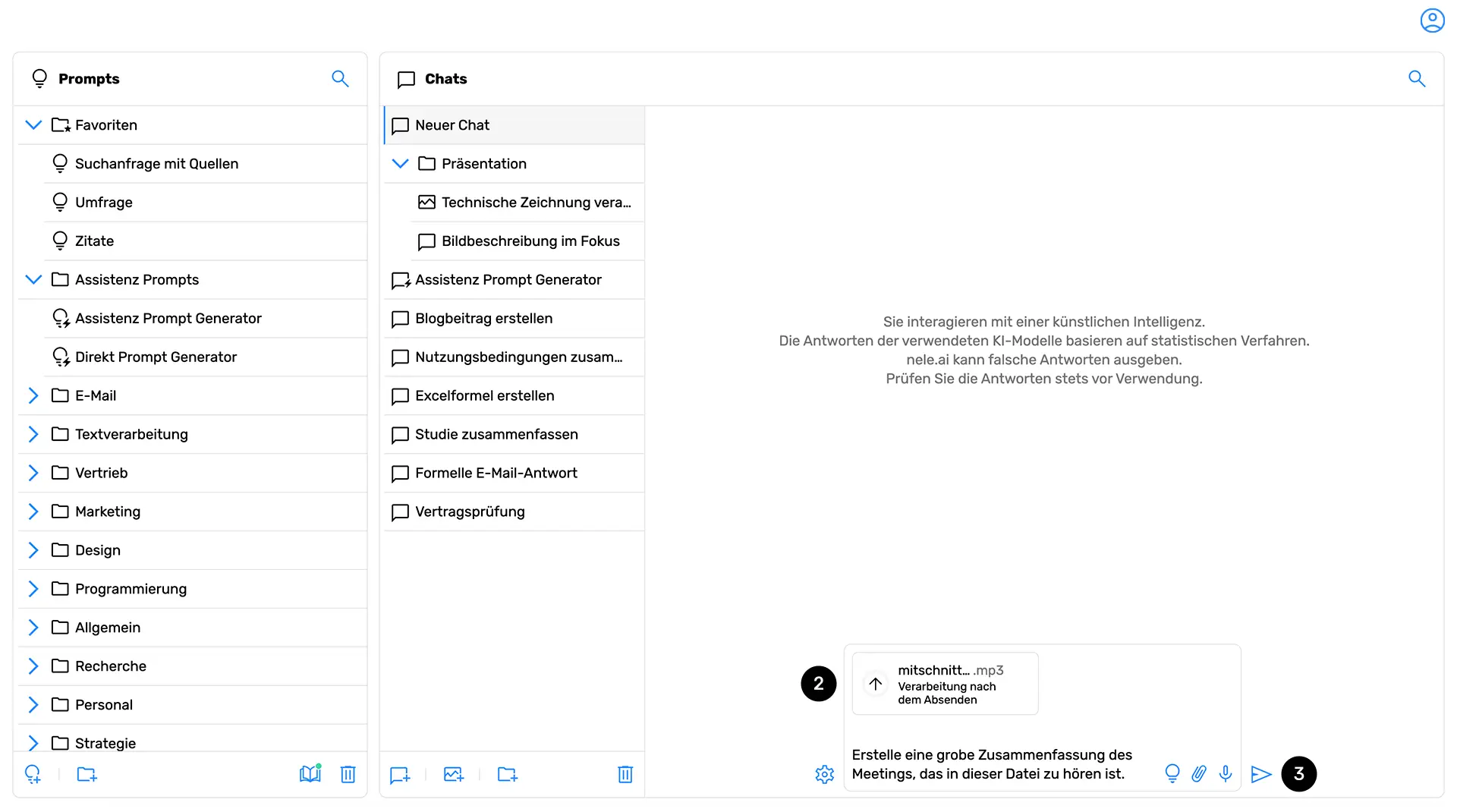
In the second step, nele.ai lists the integrated elements in the chat input (2). Finally, enter your prompt and click Send (3).
In the second step, nele.ai lists the elements included in the chat input . Finally, enter your prompt and click Submit
You can add up to 5 different elements per message, for example, two images, one website, and two audio files. Up to 5 different elements can be added per message, such as two images, a web page and two audio files.
Please note that integrated elements affect your chat's token volume. It is crucial to understand that a chat's capacity is limited by so-called tokens. 1,000 tokens are roughly equivalent to 750 words. Different nele.ai AI models can handle varying numbers of tokens, which directly impacts the length of content the model can process in a single pass. This means that integrated websites, audio files, and/or documents will gradually consume this token volume and—if they are large—can exhaust it. You can read more about AI models and their token volume per chat in our handbook entry on AI modelsHandbook entry about AI models.Note that embedded elements affect the token volume of your chat. It is crucial to know that the capacity of a chat is limited by the so-called tokens. 1,000 tokens roughly correspond to around 750 words. Different AI models from nele.ai can handle a different number of tokens, which has a direct impact on the length of content that the model can process in one run. This means that even integrated websites, audio files and/or documents can slowly fill this token volume and - if you have a large volume - exhaust it. You can find out more about AI models and their token volume per chat in our Read up.
File information and functionsFile information and features
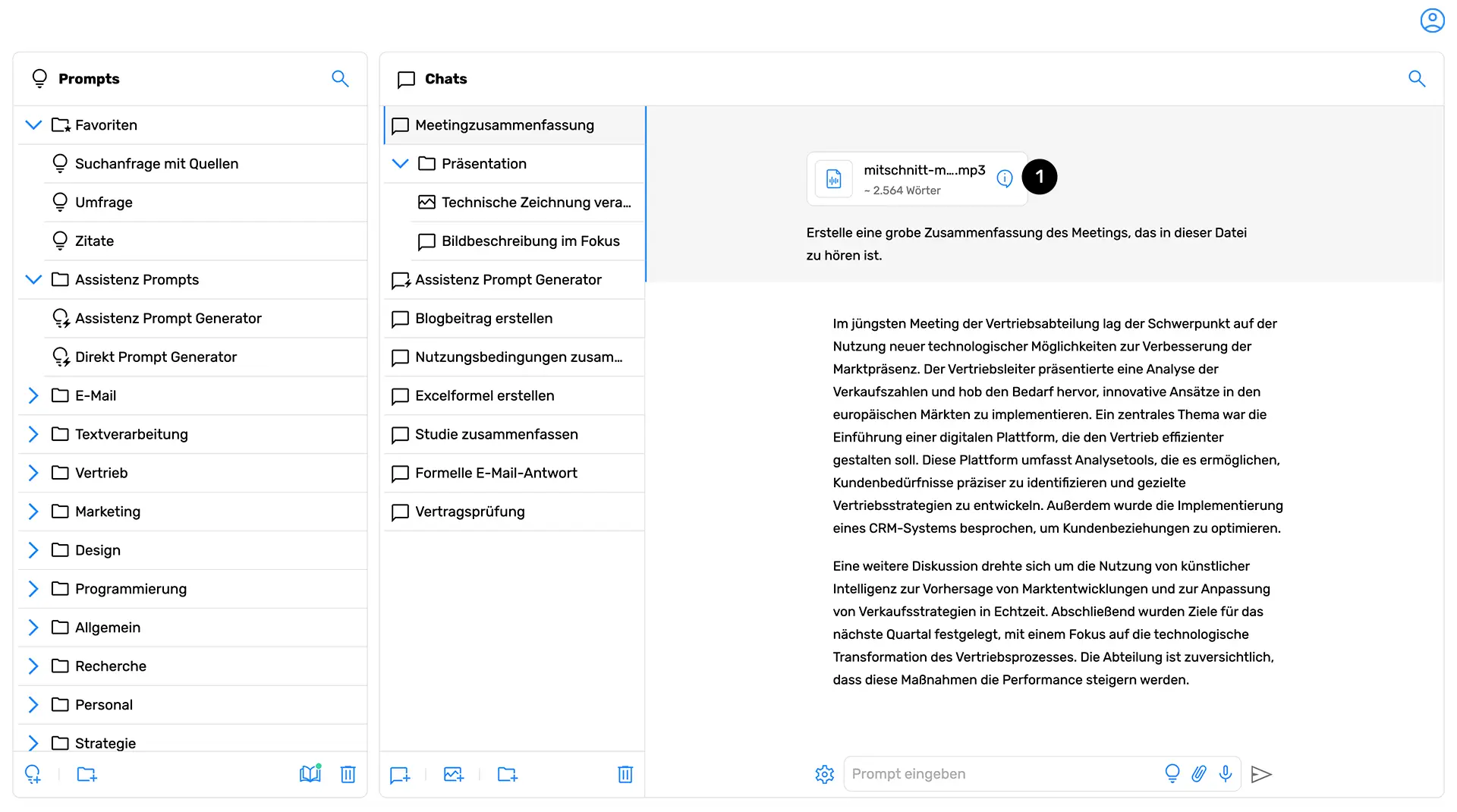
Integrated elements, such as the audio file in this case, are displayed in your chat history and can be edited or deleted later (to do this, click the pencil icon when hovering over a chat message).Embedded elements, such as the audio file in this case, are displayed in your chat history and can also be adjusted or deleted from there later (click on the pencil icon when you hover over a chat message).
For audio files, you can view additional information by clicking the info icon (1) on the uploaded item.For audio files, you can click on the info icon View more information on the uploaded item.
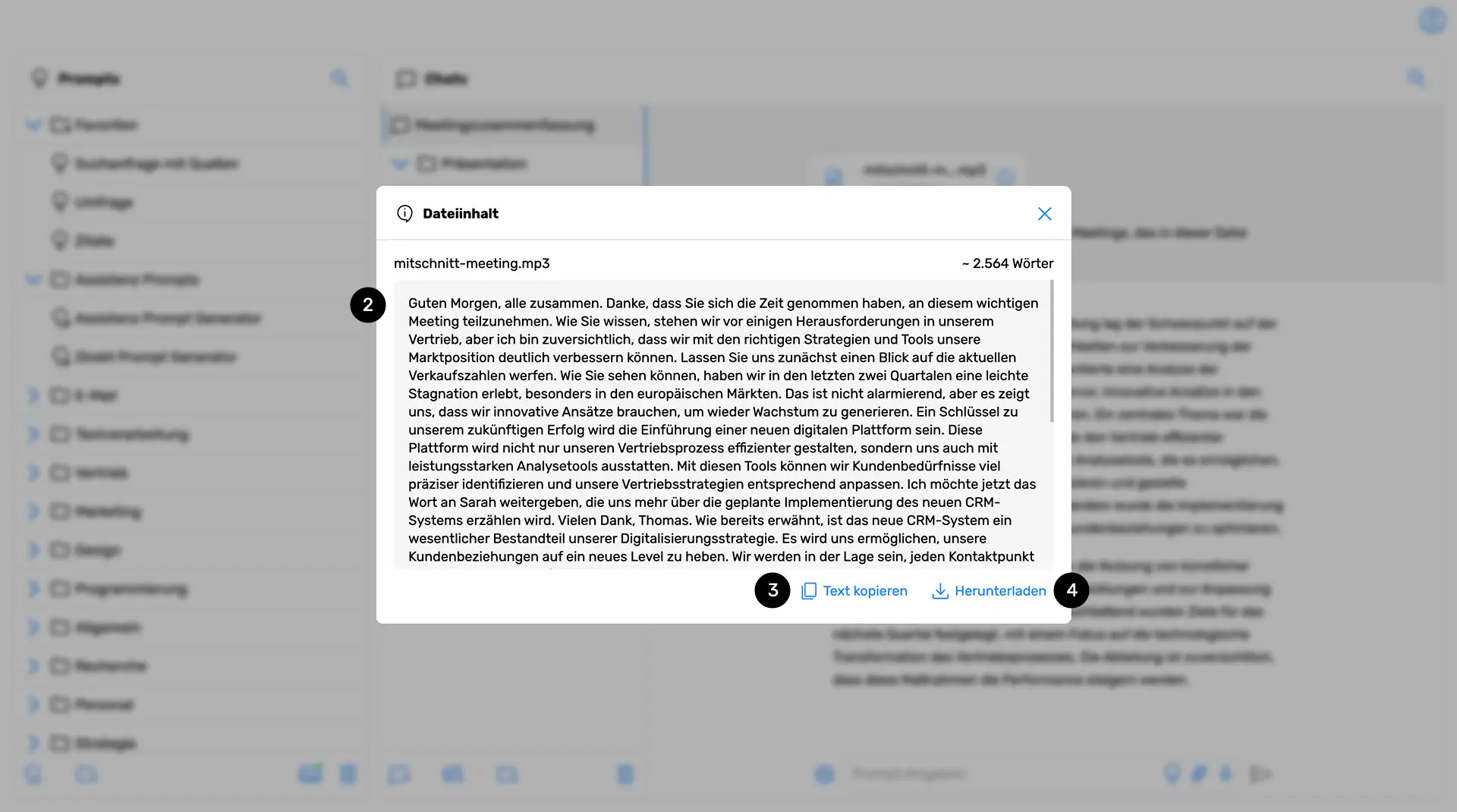
In addition to the filename and word count, this includes the full transcript of the content (2). You can either copy this to your device's clipboard (3) or download it as a .txt file (4).In addition to the file name and word count, this includes a detailed transcript of the content . You can either copy this to the cache of your device or download as a txt file
Supported audio formatsSupported audio formats
nele.ai currently supports the following audio formats:The following audio formats are currently supported by nele.ai:
aac
flac
mp3
mp4
mpeg
mpga
m4a
oggOgg
wav
webmWebm
Related articlesRelated articles
- Integrate documents and websites into the chatIntegrate documents and websites into the chat
- Difference between knowledge base (RAG) and chat contextDifference between knowledge base (RAG) and chat context
- Vision – Upload and analyze image files in the chatVision — integrate and analyze image files in the chat
- AI models available at nele.aiAI models offered by nele.ai