Managing your prompts with nele.ai
In this section, we show you how to manage your prompts with nele.ai. You will learn how to sort prompts, move them into folders, rename them, and delete them. To learn how to create prompts, see our article on prompt creationPrompt creation.In this section, we'll show you how to use nele.ai to manage your prompts. You'll learn how to sort, move to folders, rename, and delete prompts. You can find out how to create prompts in the article on
Feature overviewFeature overview
Editing promptsEdit prompts
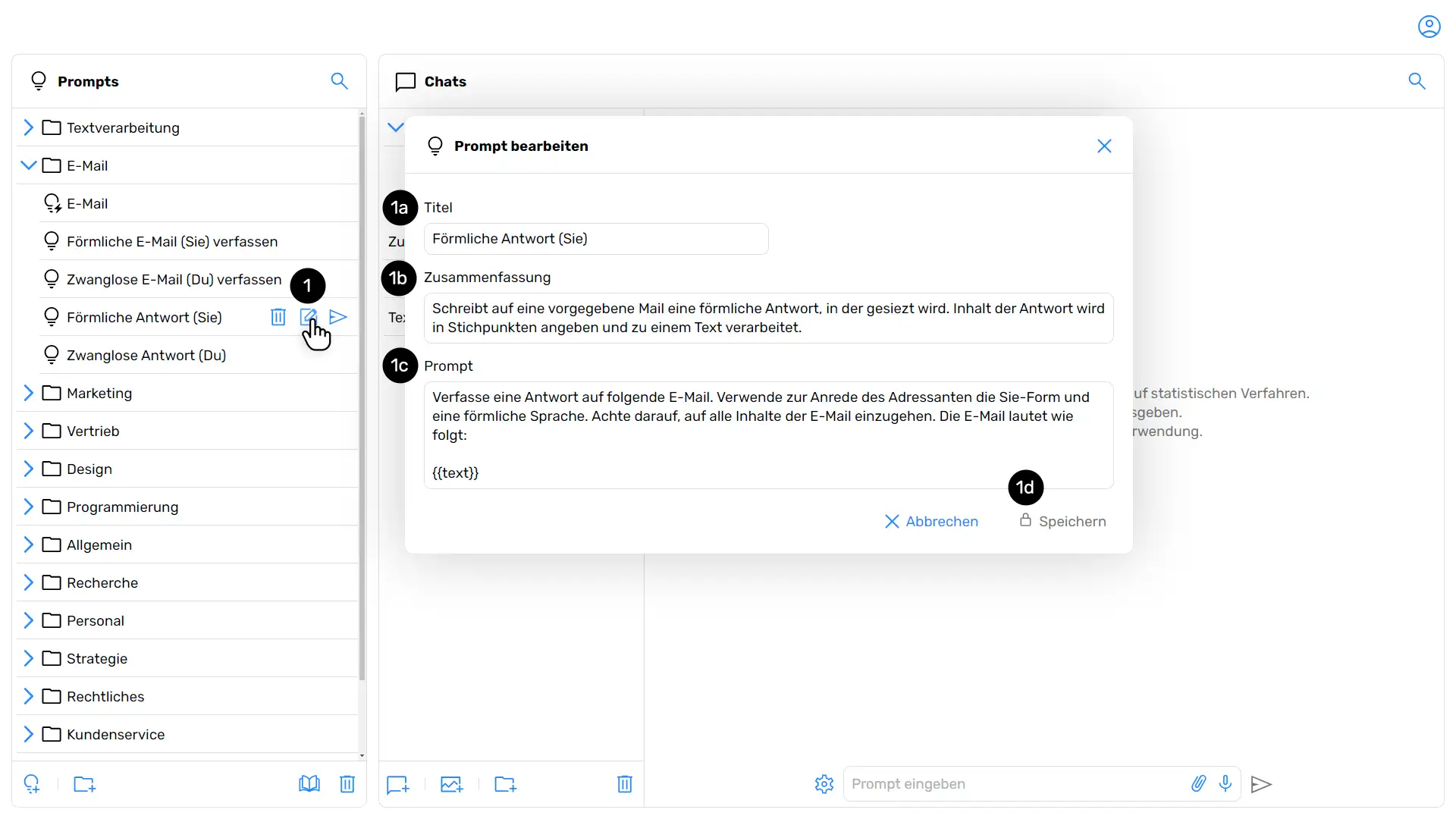
In the prompt overview, select the prompt you want to edit and click "Edit prompt" (1).In the prompt overview, select the prompt that you want to edit and click “Edit Prompt.”
A new window will open. Here, you can adjust the prompt title (1a) and the summary (1b). You can also edit the actual prompt (1c). Confirm your changes by clicking "Save" (1d).A new window opens. Here you can find the title of the prompt as well as the summary adjust. It is also possible to edit the actual prompt . Confirm your entry with “Save”
Sorting and moving promptsSort and move prompts
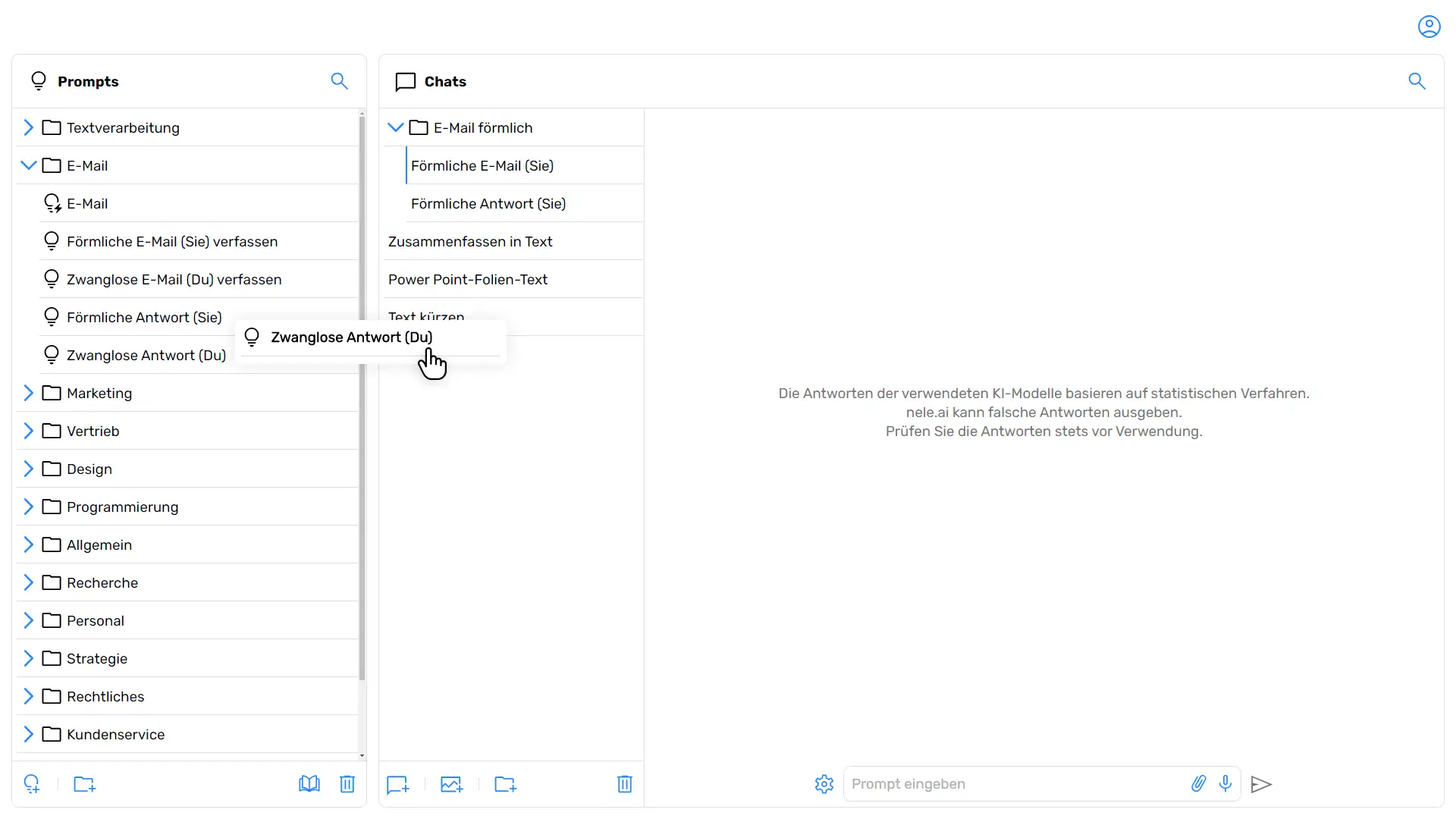
In the prompt overview, click on the prompt you want to move.In the prompt overview, click on the prompt that you want to move.
Click and hold the left mouse button to drag and drop the prompt to the desired location or into an open folder.Hold down the left mouse button and drag and drop the prompt to the desired location or into an open folder.
Deleting promptsDelete prompts
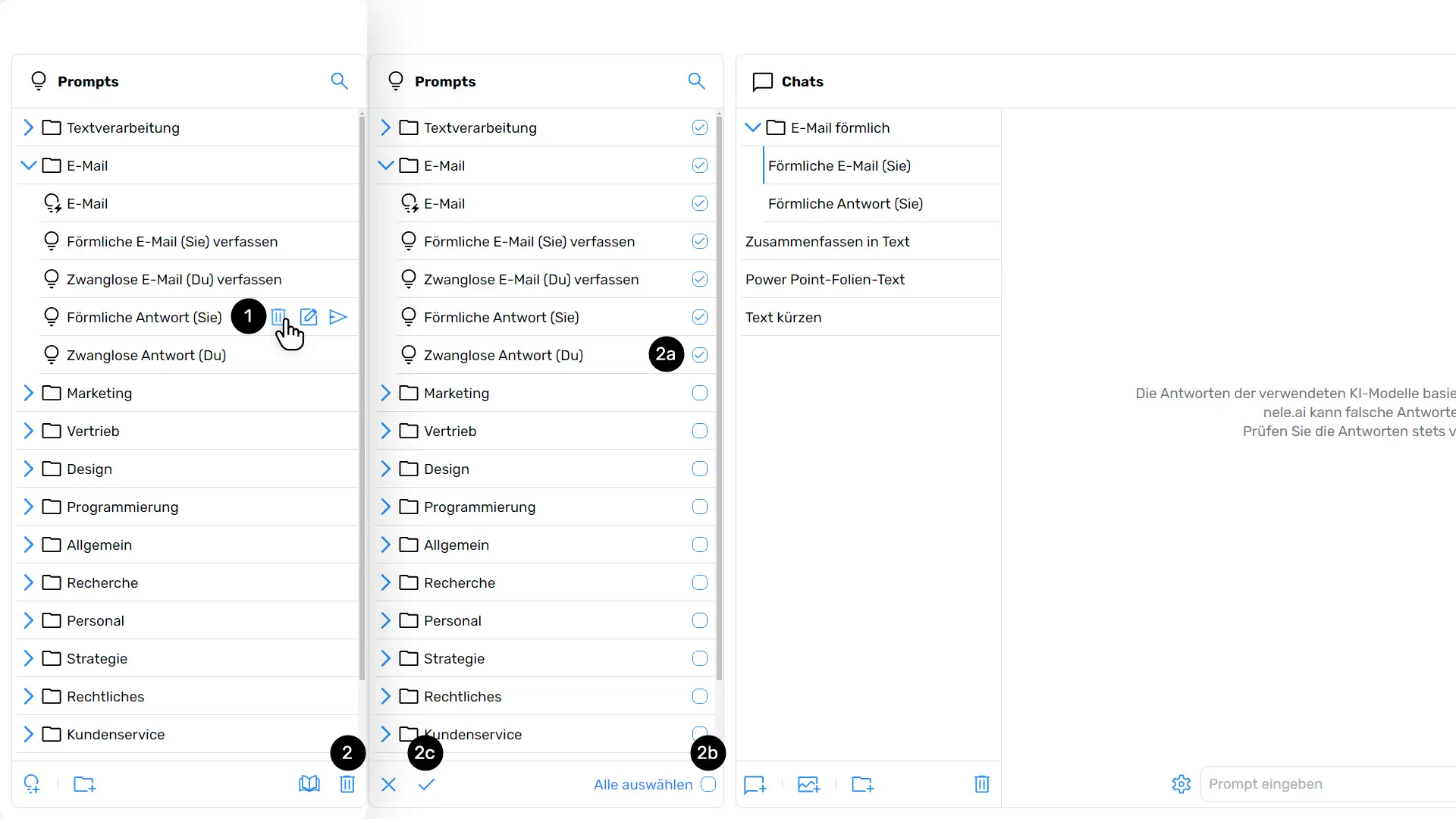
Deleting a promptDelete a prompt
In the prompt overview, select the prompt you want to delete. Then, tap the "Trash" menu icon (1) or (2) to make a selection.In the prompt overview, select the prompt that you want to delete. Then tap on the “Recycle Bin” menu icon or to create a selection.
Confirm the deletion process when prompted.When prompted, confirm the deletion.
Deleting multiple or all promptsDelete multiple or all prompts
Select the "Trash" option (2) located in the bottom right of the prompt menu. Now, check the boxes next to individual prompts (2a). Alternatively, click "Select all" (2b) if you want to delete all prompts.Select the “Recycle Bin” option Off that is at the bottom rightis in the prompt menu. Now check individual prompts . Alternatively, click “Select All.” if you want to delete all prompts.
Finally, click "Confirm delete" (2c) to confirm your selection and delete the items.Finally, click “Confirm deletion.” to confirm the selection you have made and the deletion.
Organizing prompts into foldersOrganize prompts into folders
Organizing prompts into folders works just like the folder system in the chat overview. This is explained in the article on managing chatsArticles about managing chats.Storing prompts in folders works analogously to the folder principle in the chat overview. This is used in explained.