Creating a prompt
Here you will learn how to create simple direct prompts and detailed assistant prompts. You will also learn how to insert and use text placeholders in prompts.Here you can learn how to create simple direct prompts and detailed assistance prompts. You will also learn how to insert and use text placeholders in prompts.
Feature overviewFeature overview
Create PromptsCreate prompts
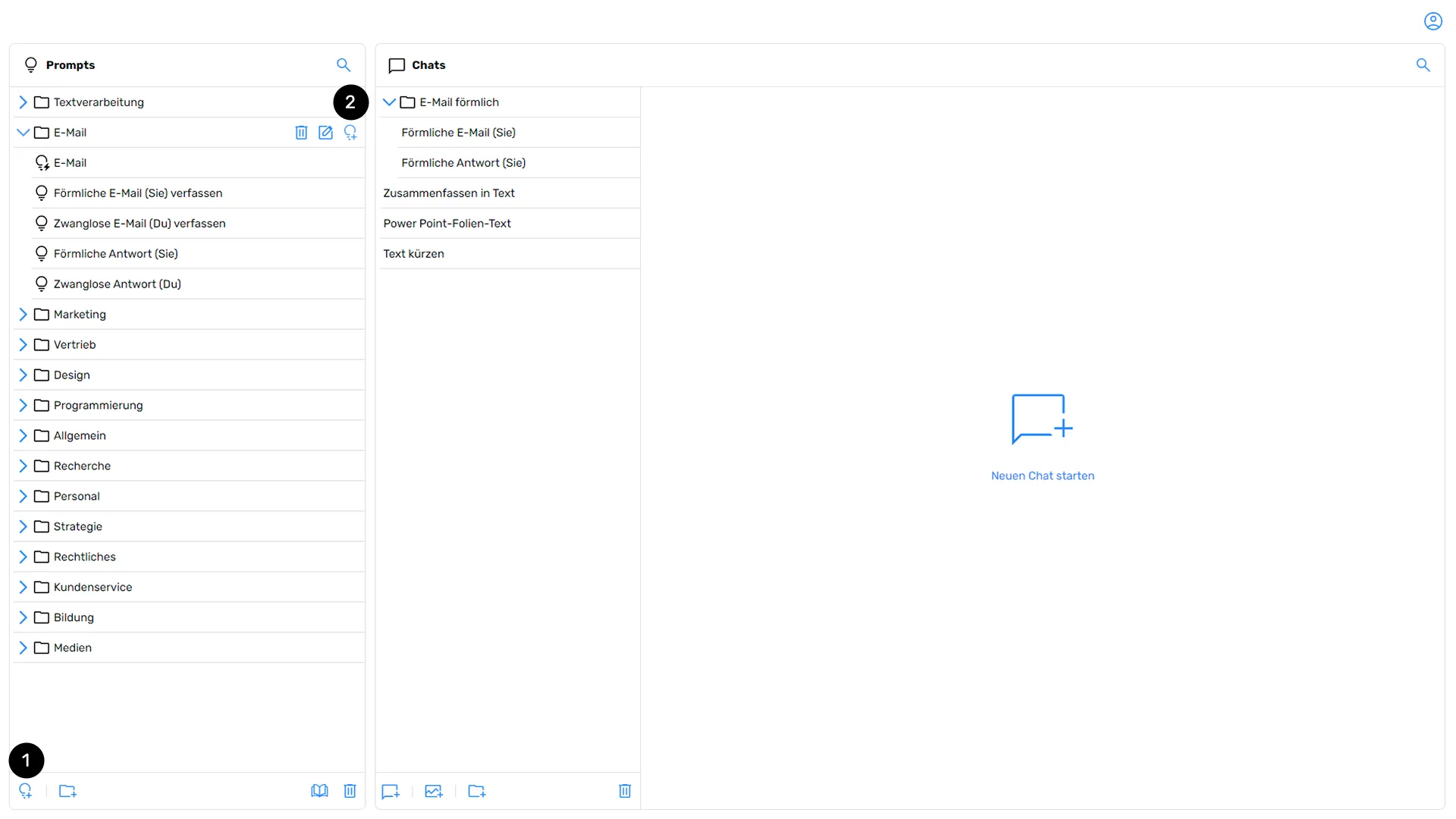
In the prompt overview, click the icon for a new prompt (1), which is represented by a light bulb with a plus sign. Alternatively, you can select a folder and click the new prompt icon there (2) to create a prompt directly within that folder. A new prompt window will open.In the prompt overview, click on the icon for a new prompt , which is represented by a light bulb with a plus sign. Alternatively, you can select a folder and click on the new prompt icon to create a prompt directly in this folder. A new prompt window opens.
Creating prompts for direct execution (Direct Prompt and Assistant Prompt)Prompt creation for direct execution (Direct Prompt and Assistant Prompt)
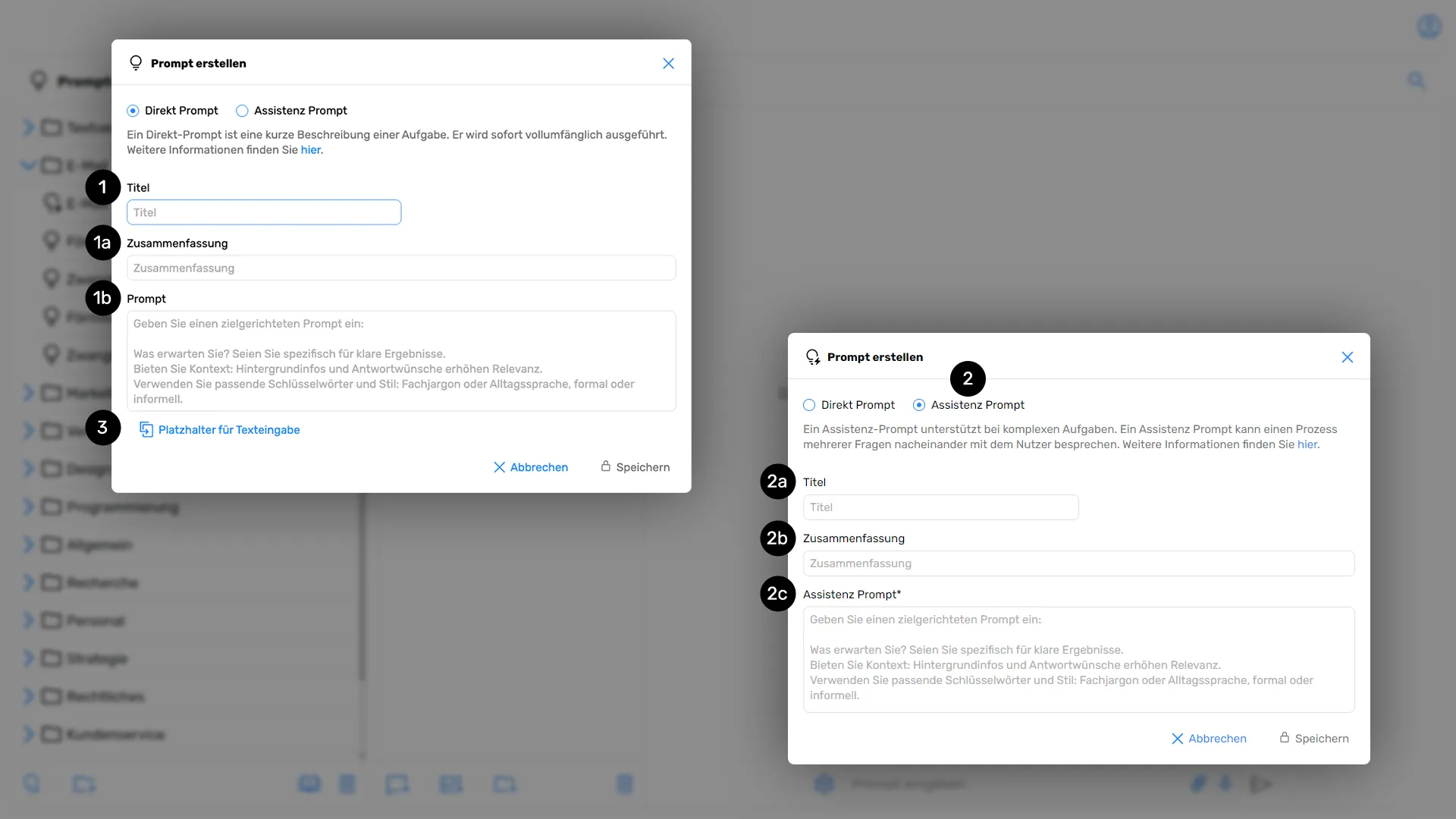
First, enter a title for the prompt you wish to create (1). In the next field, provide a brief summary of what the prompt will do (1a). Then, enter the specific, targeted prompt in the third input field located below (1b).First, enter a desired title for the prompt you want to create . In the following field, describe in summary what the prompt will execute . You then add the specific, targeted prompt to the third input field, which is below
Alternatively, you can create an assistant prompt (2) by changing the selection at the beginning of the input window from "Direct Prompt" to "Assistant Prompt". Unlike direct prompts, assistant prompts are designed to provide interactive support for more complex, multi-step tasks.Alternatively, you can create an assistant prompt by changing the selection from “Direct Prompt” to “Assistant Prompt” at the beginning of the input window. In contrast to direct prompts, assistance prompts are used to interactively support you with more complex, multi-level tasks.
Please also read the section on Assistant Prompts.Assistant prompt.Please also read the section
Follow the same procedure as for the direct prompt (in the first two steps (2a) and (2b), enter the prompt title and a summary). Here, too, enter the specific prompt in the third input field (2c).Proceed analogously to the Direct Prompt (in the first two steps and Enter the prompt title and a summary). Here too, enter the specific prompt in the third input field one.
Prompt creation with text placeholderPrompt creation with text placeholder
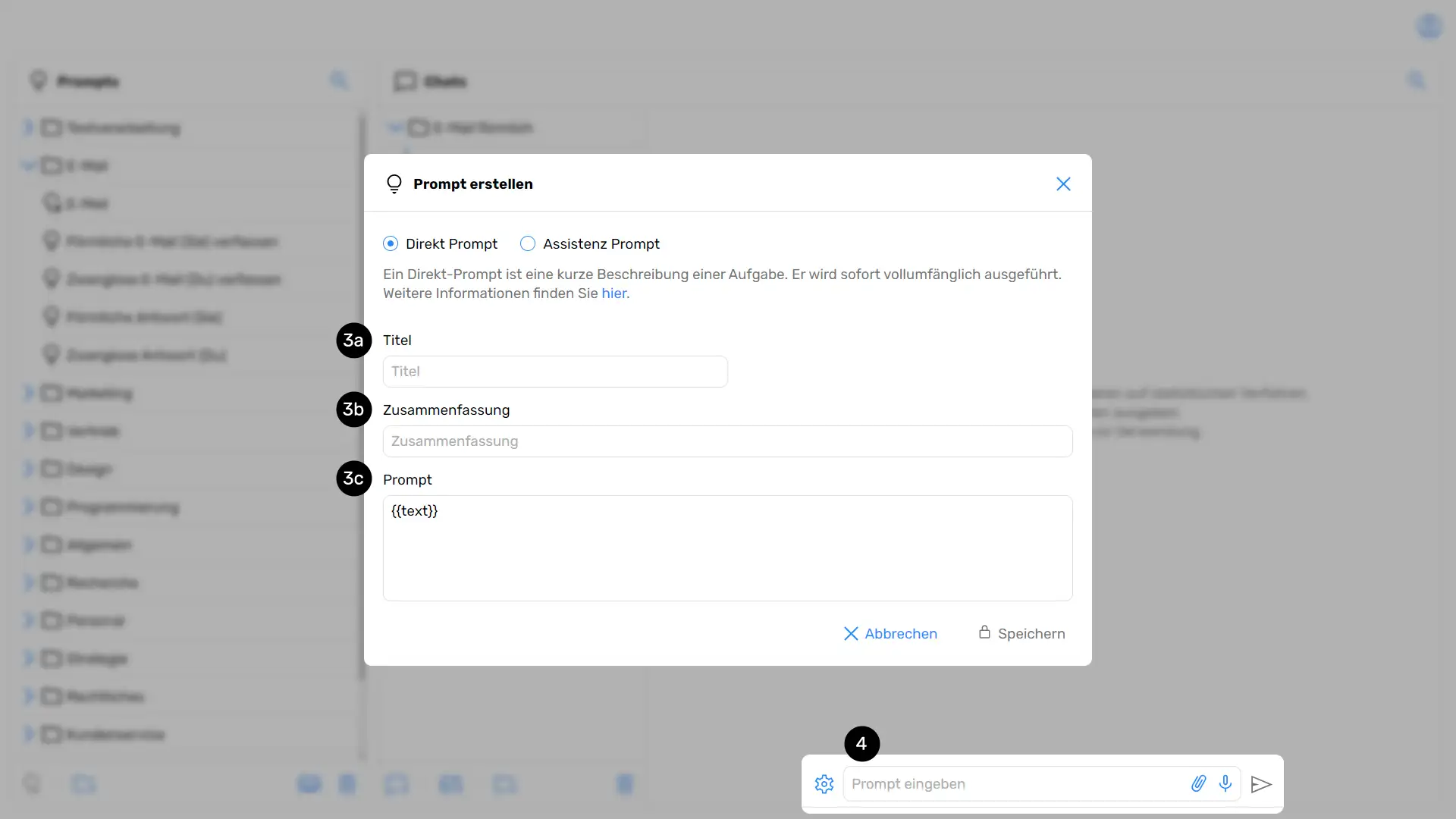
Just as with direct prompts and assistant prompts, first enter a title for the prompt you wish to create (3a). In the next field, provide a brief summary of what the prompt will do (3b). Then, enter the specific, targeted prompt in the third input field located below (3c).As with the Direct Prompt and Assistant Prompt, first enter a desired title for the prompt that you want to create . In the following field, describe in summary what the prompt will execute . You then add the specific, targeted prompt to the third input field, which is below
Now select the "Text input placeholder" command (3 under "Creating prompts for direct execution")(3 under “Prompt creation for direct execution”) to add such a placeholder to your prompt. It will then appear in the "Prompt" input field as "{{text}}".Now select the “Placeholder for text input” command to add such a placeholder to the prompt. It is then visible in the “Prompt” input field with the name “{{text}}”.
If your prompt contains such a placeholder, it will not be executed immediately; instead, it will first appear in the chat input field (4). It will not be sent automatically, allowing you to replace the integrated placeholder with your own custom text. Once you have done so, you can send the prompt as usual.If your prompt contains such a placeholder, the prompt is not executed directly, but first appears in the input field of a chat . There, it is not sent immediately, but it is possible to replace the integrated placeholder with an individual text input. The prompt can then be sent as usual.