Sharing Knowledge Bases
Use the share feature to grant specific access to a knowledge base for individuals, groups, or your entire organization. You can also define the specific actions each recipient is permitted to perform within the knowledge base.
Feature overview
Share knowledge base
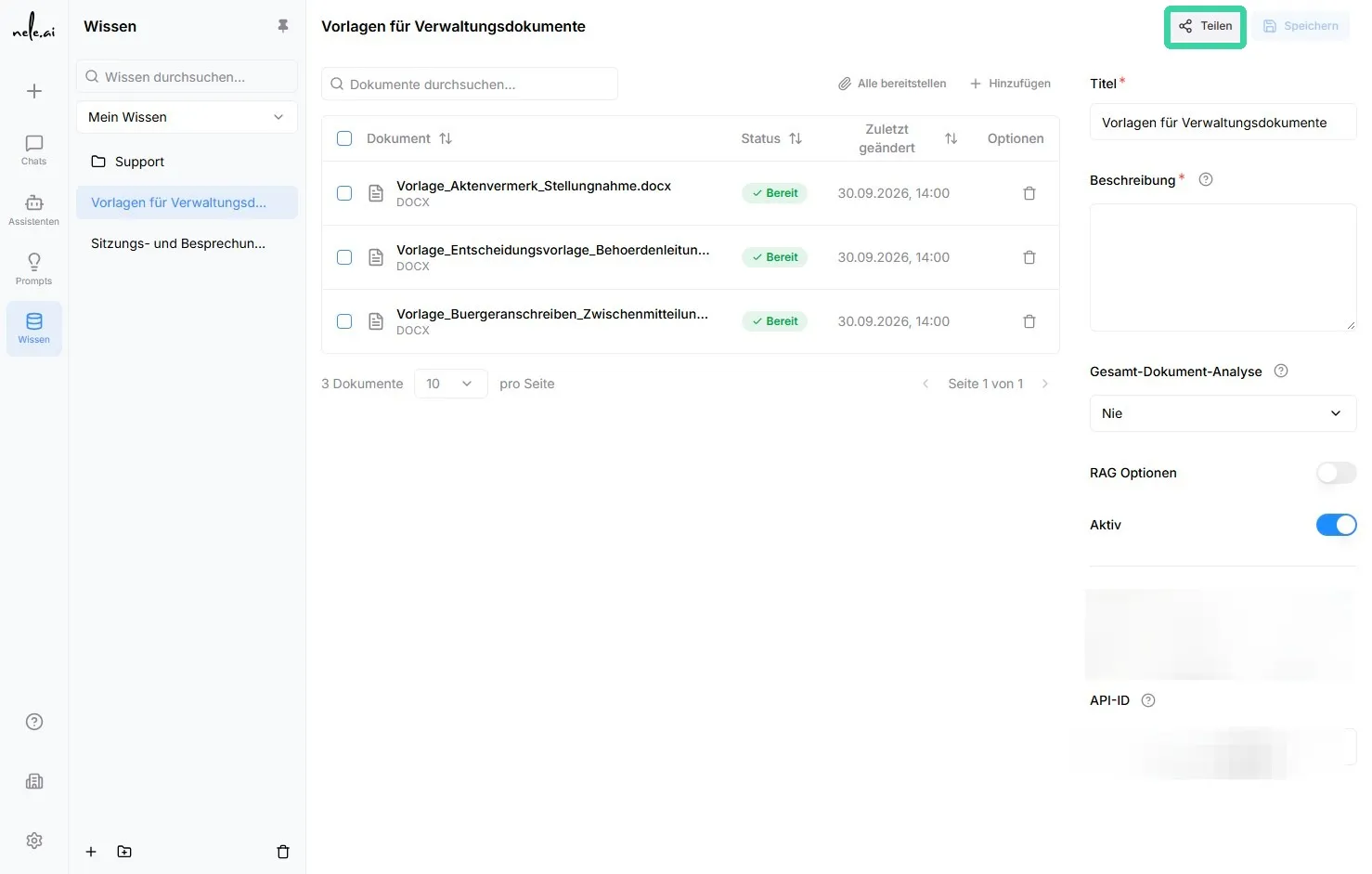
How to share
- Open the knowledge base you want to share.
- Locate the button in the top right area of the page"Share".
- Click on"Share".
Tip for selecting recipients
Use targeted sharing for individual members or groups if the knowledge base is intended only for a clearly defined group of people. Organization-wide sharing should only be selected if all employees are permitted to access the content.
Select recipients for sharing
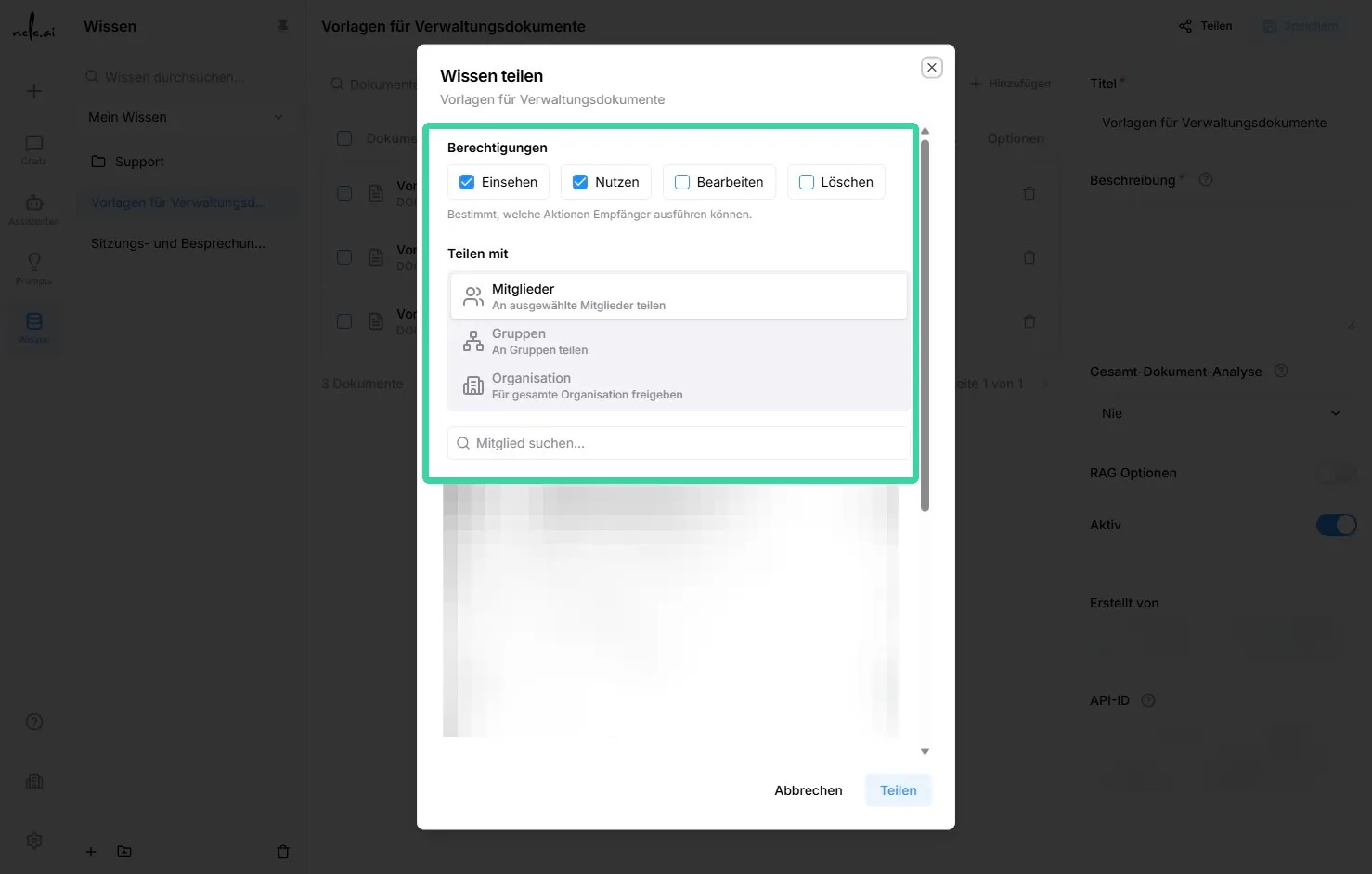
Possible recipient groups
- Individual members:Share the knowledge base specifically with certain individuals.
- Groups:Grant access to an existing group. This is useful when multiple people require the same rights.
- Entire organization:Make the knowledge base available to everyone within your organization.
For example:
"The Sales group is granted access to product documentation, while editing remains reserved exclusively for Product Management."
Define permissions
In addition to the recipients, you define the rights granted to individuals or groups. Always select permissions based on the principle of granting only the rights necessary for the respective task.
Available permissions
- View:
The knowledge base is visible and can be opened. Individuals with this permission can read the content but cannot make any changes to it. - Use:
This permission allows the use of the shared knowledge base within the platform's intended functional scope. - Edit:
Individuals with this permission can adjust the content and structure of the knowledge base. This includes uploading new documents, deleting existing documents, and changing titles and descriptions. Settings for document analysis and RAG options can also be edited. - Delete:
This permission allows for the deletion of the entire shared knowledge base. It should therefore only be granted to explicitly authorized individuals.
Important permission note
The “View” permission is automatically granted when you assign a higher-level permission such as “Use” , “Edit” , or “Delete” . Higher-level rights therefore always assume that the knowledge base can be viewed.
Note on protecting important content
Only grant "Edit" „Bearbeiten“ and especially "Delete" „Löschen“ permissions to individuals responsible for maintaining or managing the knowledge base. This helps prevent accidental changes or the loss of important documents.
Best practice recommendation
Recommended permission distribution
- Employees who actively use the knowledge base:Permission"Use"
- Editorial or subject matter experts:Permission"Edit"
- Administrators:Permission"Delete", provided that deleting knowledge bases is part of their responsibilities
For example:
"A new team member is initially granted only 'View' access. The responsible department is also given 'Edit' access to keep content up to date."
Result
Once the sharing settings are saved, the selected members, groups, or organization members can access the knowledge base. The scope of their capabilities depends on the specific permission assigned. Review sharing settings regularly, especially when responsibilities, teams, or content change.