Audio recording
Opening the audio recording featureThe following functions are available
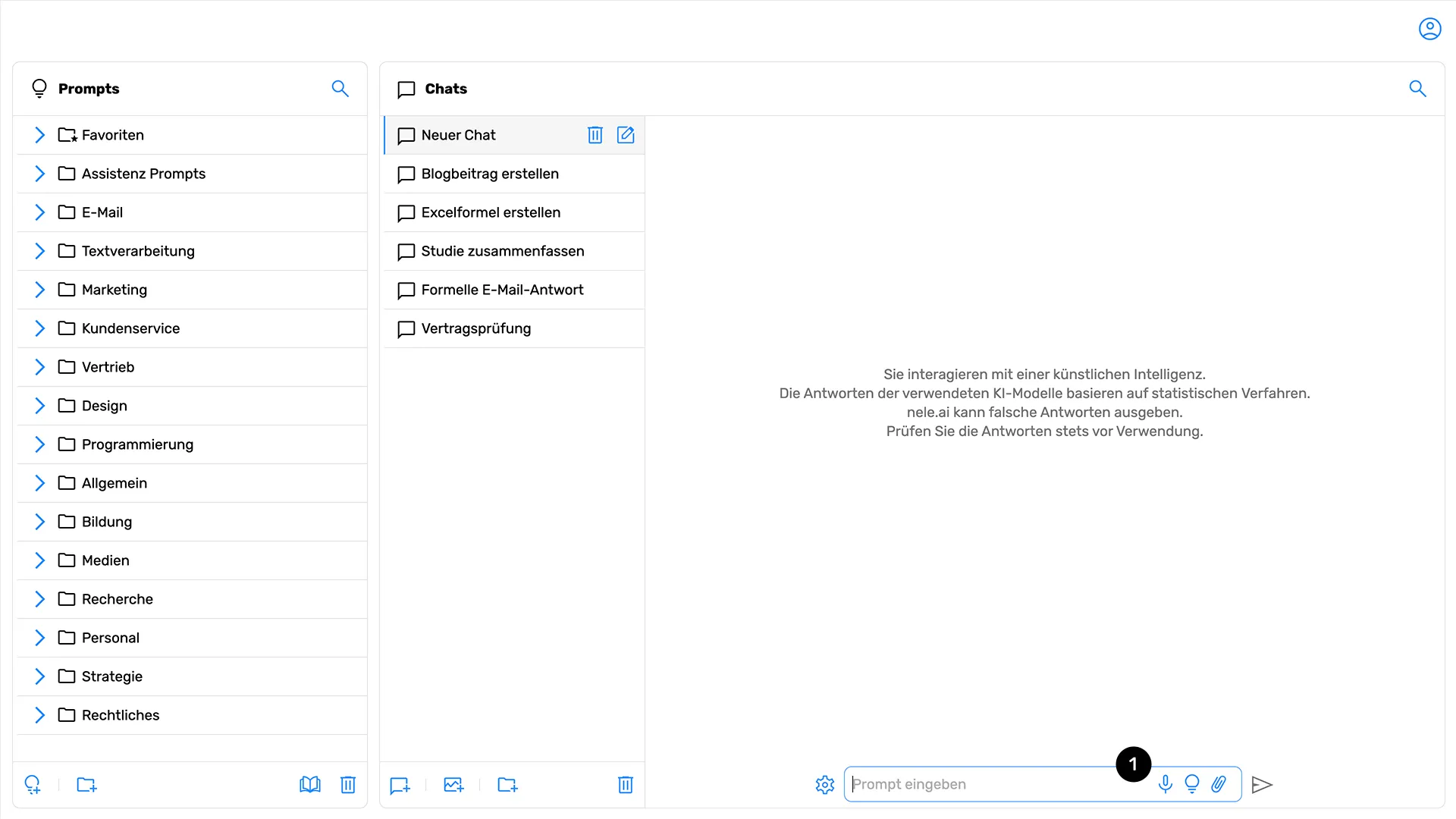
The audio recording feature allows you to use spoken input directly in nele.ai without having to type text. Your voice recordings are automatically transcribed and transferred into the input field.The audio recording feature allows you to use spoken input directly in nele.ai without having to type text. Your voice recordings are automatically converted into text and transferred to the input field.
To use the audio recording feature, click the microphone icon (1) at the bottom of the chat window next to the input field, or use the keyboard shortcut Alt+M (on macOS Option+M). This will open the audio recording popup.To use the audio recording function, click on the microphone icon at the bottom of the chat window next to the input field. This opens the audio recording popup.
Note: The microphone icon is only displayed if your administrator has granted you access to the Azure AI Speech model. Processing a voice recording is billed against your credits.Note: The microphone icon only appears if your administrator has given you access to the Azure AI speech model. The processing of a voice recording is calculated using your credits.
Create a voice recordingCreate a voice recording
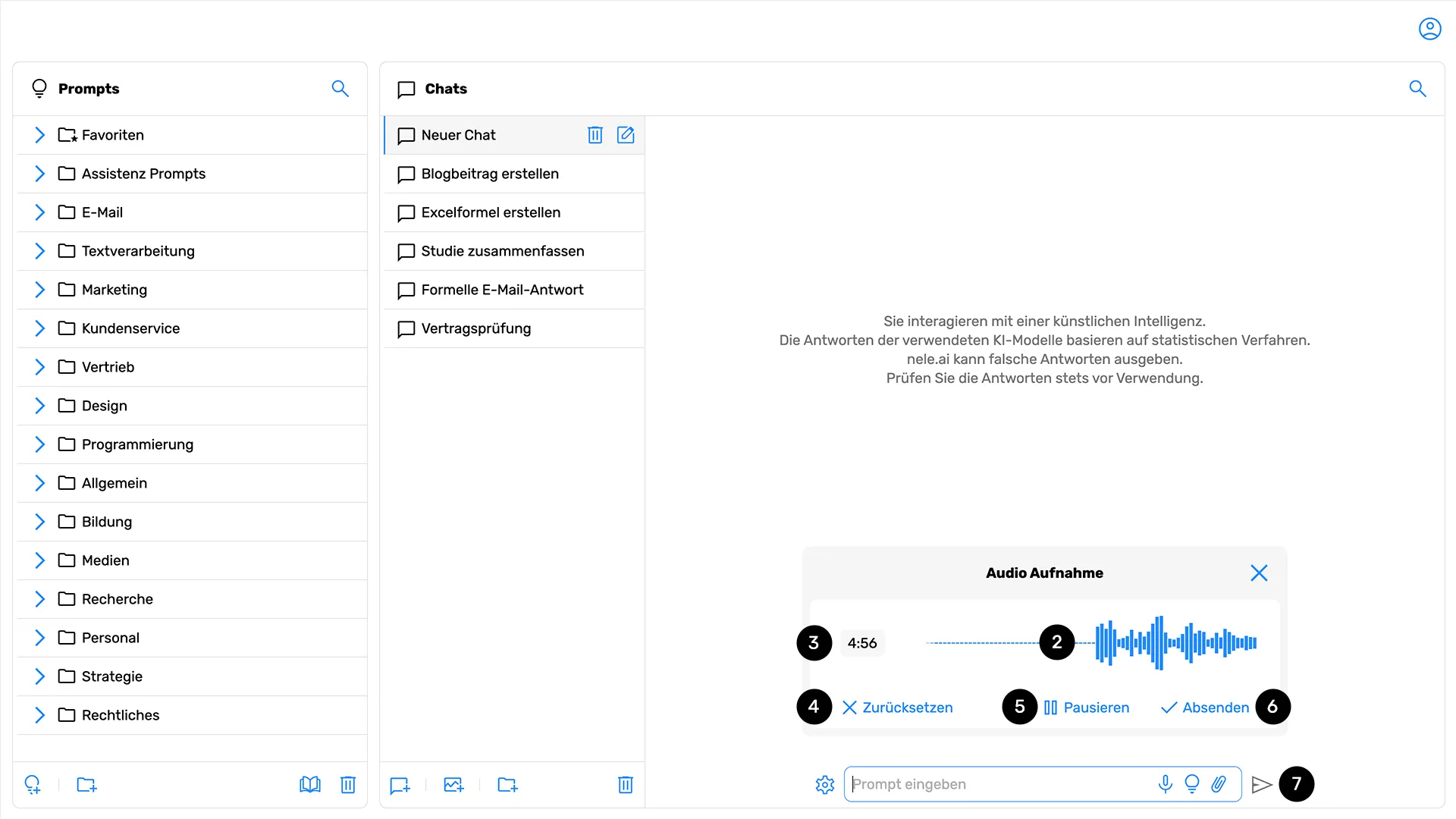
Once you open the audio recording popup, you can start recording immediately. Recording begins automatically as soon as the popup is opened.After opening the audio recording pop-up, you can start recording right away. Recording starts automatically as soon as the popup is opened.
During active recording, a waveform display (2) appears, providing a visual representation of your voice input. Additionally, a timer (3) shows the current recording duration.During active recording, a waveform display appears visible, which visually represents your voice input. In addition, a timer shows Set the current recording time.
Important recording limits:Important intake limits:
- Maximum recording duration: 300 minutes
- Automatic stop: Recording will automatically stop and be processed after 30 seconds of silence are detected
Recording controlsRecording controls
The audio recording popup offers various control options:The audio recording popup offers various control options:
- Reset (4): Discards the current recording and starts a new one
- Pause/Resume (5): Pauses the current recording or resumes a paused one. Alternatively, you can use the keyboard shortcut "Alt+M" (on macOS "Option+M") to pause or resume recording.
- Send (6): Ends the recording and starts the transcription
The recording must be sent manually by clicking the send button (7).The recording must be sent manually via the submit button be triggered.
The chat input's send button remains disabled while the recording is being processed.The send button for the chat input remains deactivated as long as the recording is still being processed.The send button for the chat input (7) remains deactivated as long as the recording is still being processed.
Automatic transcriptionAutomatic transcription
After submitting your recording, it is automatically transcribed by the Azure AI Speech model. Transcription occurs only after the recording is finished, not live during the recording process.After you submit your recording, it is automatically transcribed by the Azure AI speech model. The transcription only takes place after the recording is complete, not live during the recording.
The transcribed text is automatically inserted into the chat input field, where you can edit it if necessary before sending it to the AI as a prompt.The transcribed text is automatically transferred to the chat input field and can be edited there if necessary before you send it to the AI as a prompt.
The speech recognition feature supports various languages and detects them automatically based on your input.Voice recognition supports various languages and automatically recognizes them based on your input.
Microphone permissions on macOSMicrophone permissions on macOS
When using the audio recording feature in the macOS desktop app for the first time, a system dialog will appear asking you to grant the app access to your microphone. This permission is mandatory for using the feature.When you use the audio recording function in the desktop app on macOS for the first time, a system dialog opens in which you must grant the app access to the microphone. This permission is mandatory to use the function.
If you did not grant microphone access initially, you can adjust this at any time in your system settings:If you did not initially grant the microphone permission, you can adjust it at any time later in the system settings:
- Open your Mac's System Settings
- Navigate to "Security & Privacy"
- Select the "Microphone" section
- Enable the permission for nele.ai
If you attempt to use the audio recording feature without granting microphone access, a notification window will automatically appear with a corresponding message. The recording feature cannot be used in the macOS desktop app without this system permission.If you try to use the audio recording function without granted microphone permission, a message window opens automatically. It is not possible to use the recording function in the macOS desktop app without this system permission.
In the web version of nele.ai, microphone access is managed via standard browser permissions.In the web version of nele.ai, microphone authorization is carried out using the usual browser permissions.