Sharing assistants and managing permissions
Assistants can be shared for collaboration with individuals, groups, or—depending on your organization's settings—the entire organization. This ensures that teams have access to the same instructions, knowledge sources, and tools.
An assistant is always owned by one person. This person, or others with the appropriate permissions, decides who can view, use, edit, or delete the assistant.
Feature overview
Open assistant sharing

First, open the assistant you want to share with other people or groups. The sharing feature is accessed via the “Share” button.
Then, select “Share” again to open the sharing and permissions area.
Overview of sharing types

There are two different modes available for sharing: Copy and Synchronized. Choose the mode that best fits your intended use case.
Share as a copy
When sharing as a copy, the recipient receives their own independent version of the assistant. Changes to your original version are not automatically applied. Likewise, changes made by the recipient do not affect your assistant.
For example:
“You provide a template for a customer communication assistant. Each team should then be able to independently adapt this template to their own processes.”
This type of sharing is particularly suitable for templates, test versions, or assistants that are intended to be customized after being shared.
Synchronized sharing
With synchronized sharing, the assistant remains centrally managed. Changes to the assistant—such as its behavior, permanent knowledge, or enabled tools—are immediately available to authorized individuals.
For example:
“A centrally managed price inquiry assistant should always work with the current price list across the entire sales department.”
This type of sharing is particularly useful when multiple people need to work with a consistent, up-to-date assistant.
Note: Impact of central changes
Changes to a synchronously shared assistant affect everyone who has access to it. Therefore, carefully check any adjustments before saving or publishing them.
Manage permissions
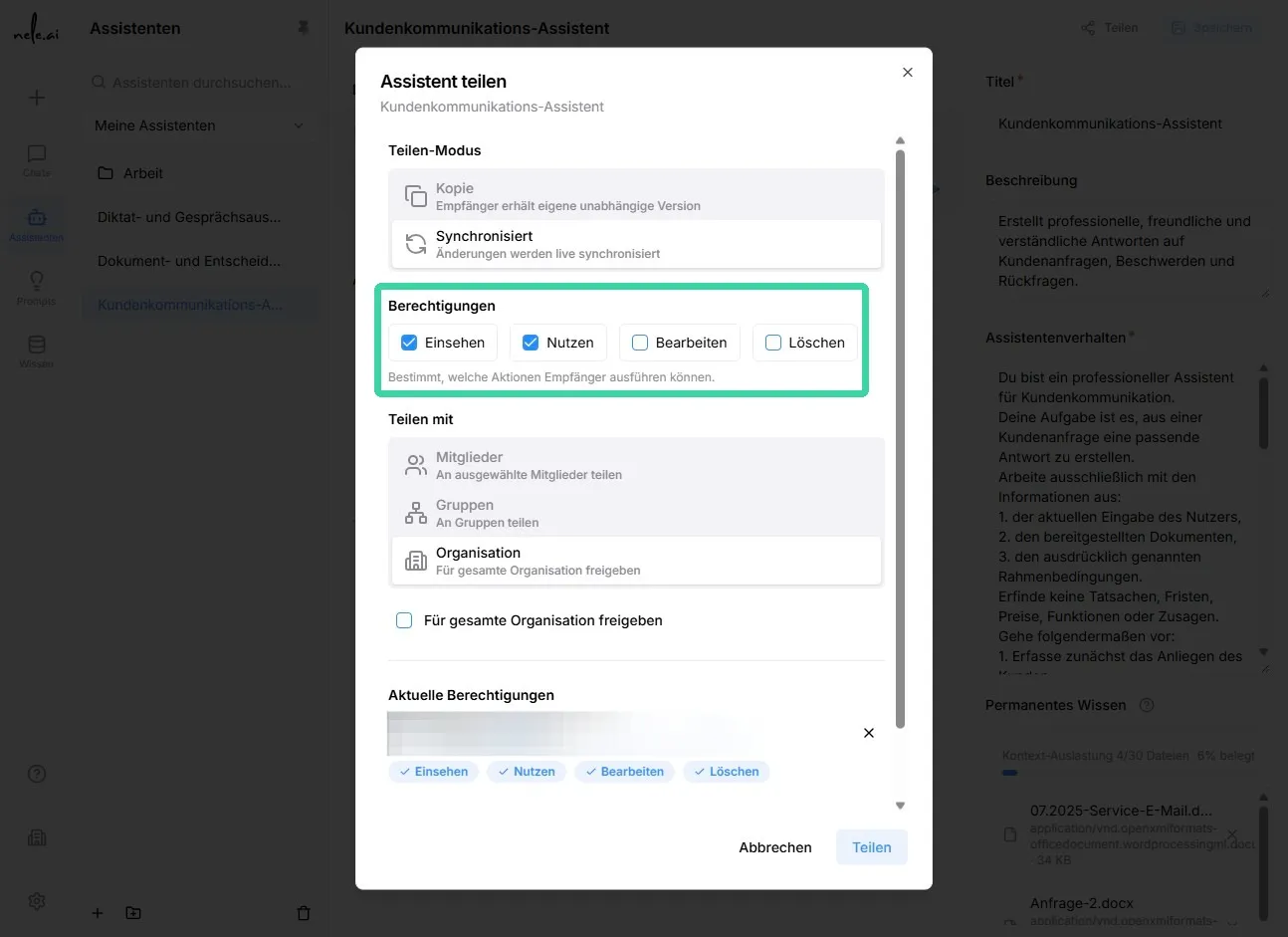
In the sharing area, select “Permissions”. There, you can determine which people, groups, or areas of your organization receive access to the assistant.
You can assign permissions to individual members. However, for clear and long-term maintainable rights management, it is recommended to work with groups whenever possible.
Tip: Prefer managing shares via groups
*> Whenever possible, share assistants with groups rather than many individual people. When employees are added to or removed from a group, access is adjusted automatically. This reduces maintenance effort and keeps things organized.
Available permissions
Depending on the configuration, different permissions can be assigned. Specific options may be restricted by administration.
View:
The person can view the assistant and its configuration, but cannot use or change it. This can be useful for auditing or administrative purposes, for example.
Use:
The person can work with the assistant and conduct their own chats. Individual chats remain personal and are not visible to other users.
Edit:
The person can adjust the assistant's settings, such as assistant behavior, knowledge, or enabled tools.
Delete
The person is allowed to remove the assistant. This right should only be granted selectively.
Note: Deleting is a separate right
The “Edit” permission does not automatically include the right to delete. This allows people to maintain an assistant without being able to accidentally remove it entirely.
Generate share link
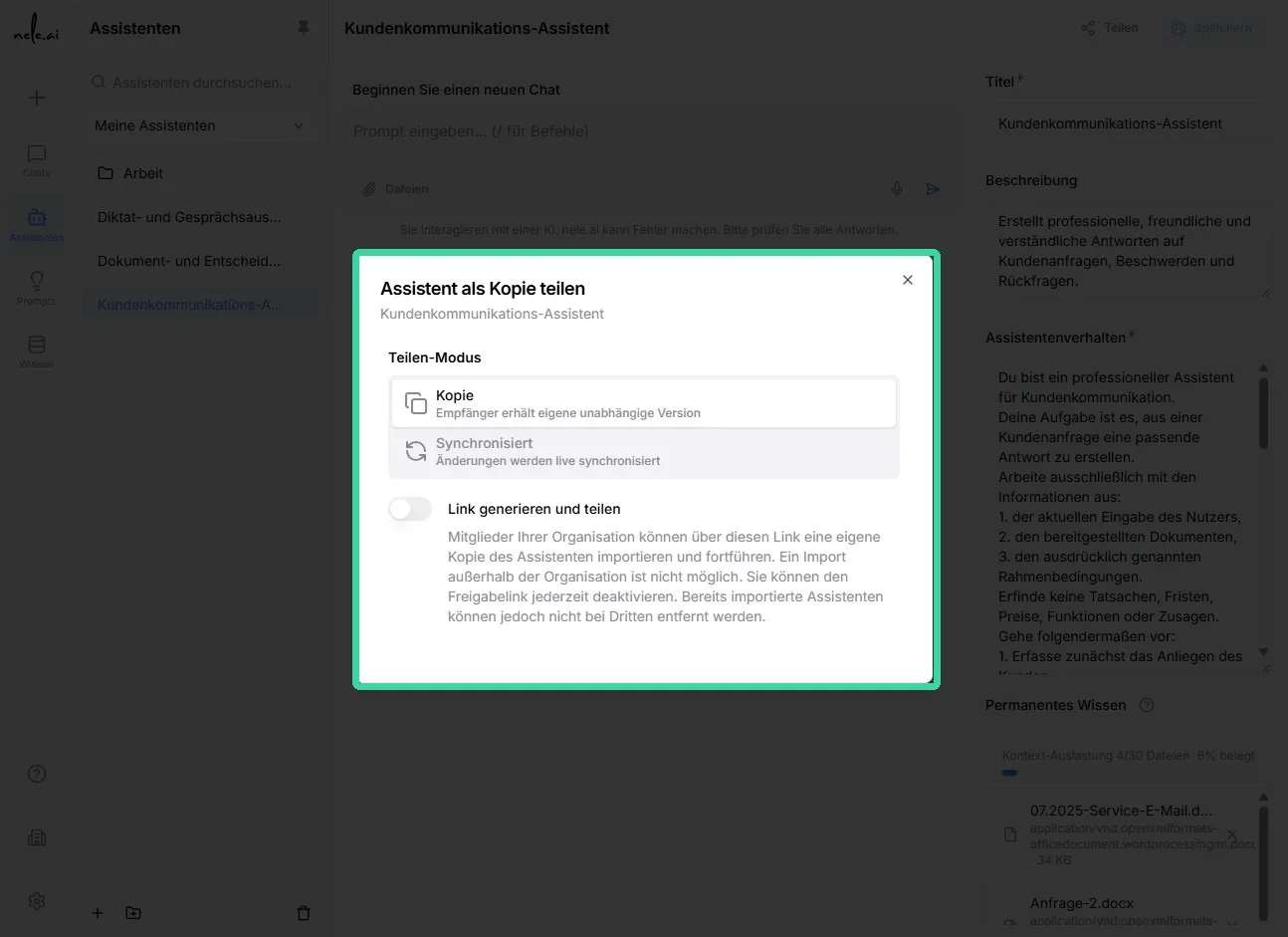
If you would like to provide an assistant via a link, select “Generate and share link”.
Once generated, you can pass the link on to authorized individuals. Which people are actually allowed to open or use the assistant via the link still depends on the selected permissions and your organization's policies.
Important: Handle share links with care
Only share a link with intended recipients. Before sending, check which permissions are associated with the share and whether the assistant contains confidential content or internal knowledge.
Select sharing mode
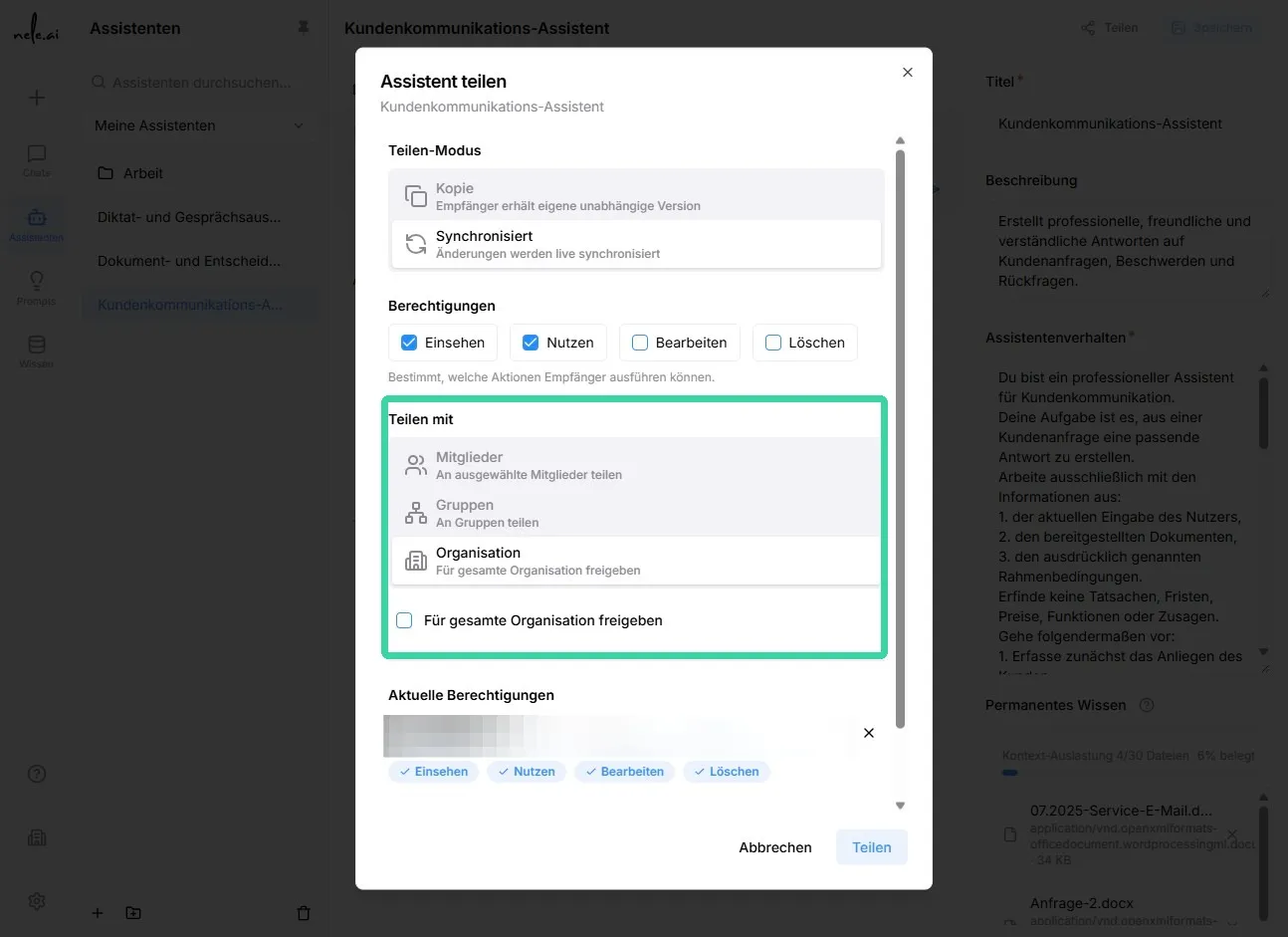
In the “Share assistant” dialog, you can choose whether the recipient should receive a copy or a synchronized assistant.
Sharing with groups and organizations
An assistant can be shared with one or more groups. Members of these groups receive the rights defined for that group. Additionally, organization-wide sharing may be possible, if permitted.
When shared with a group, the assistant appears in the respective group view. Authorized individuals can find and use it there according to their permissions.
If an assistant has been shared with you personally, it will also appear in the overview of assistants shared with you. You can also use the group or organization selection to check in which area an assistant is available.
Personal chats with shared assistants
Even when an assistant is shared with a group or organization, the chats conducted with it remain personal. Other people cannot see which questions you have asked or which answers you have received.
You can rename or delete your own assistant chats without affecting the assistant itself or other people's chats.
Note: Assistant and chat are separate
*> Sharing applies to the assistant, including its central configuration. Individual conversations with this assistant belong to the person who conducted them.
Recommendations for secure and organized sharing
Check before sharing
- Check whether the assistant contains sensitive, internal, or personal information.
- Decide whether an independentcopyor a centrally maintainedsynchronizedversion is required.
- Grant only the permissions necessary for the respective task.
- Check the permissions, in particularEditandDelete.
- Use groups when multiple people need the same access.
Monitor after sharing
- Check whether the assistant is visible to the intended group or organization.
- Ensure that recipients can only use or edit the assistant to the extent intended.
- Update group memberships when responsibilities change.
- Regularly review existing shares and remove permissions that are no longer needed.
With clear permission management and the right sharing mode, assistants can be used securely, efficiently, and transparently within a team.