Assistant management and settings
Assistants support you with recurring tasks that always require the same context. They combine defined behavior with stored knowledge, a selectable AI model, and optional tools. This makes them suitable for tasks such as providing price quotes, reviewing standardized documents, or answering questions about rules and policies.
Feature overview
Assistant settings
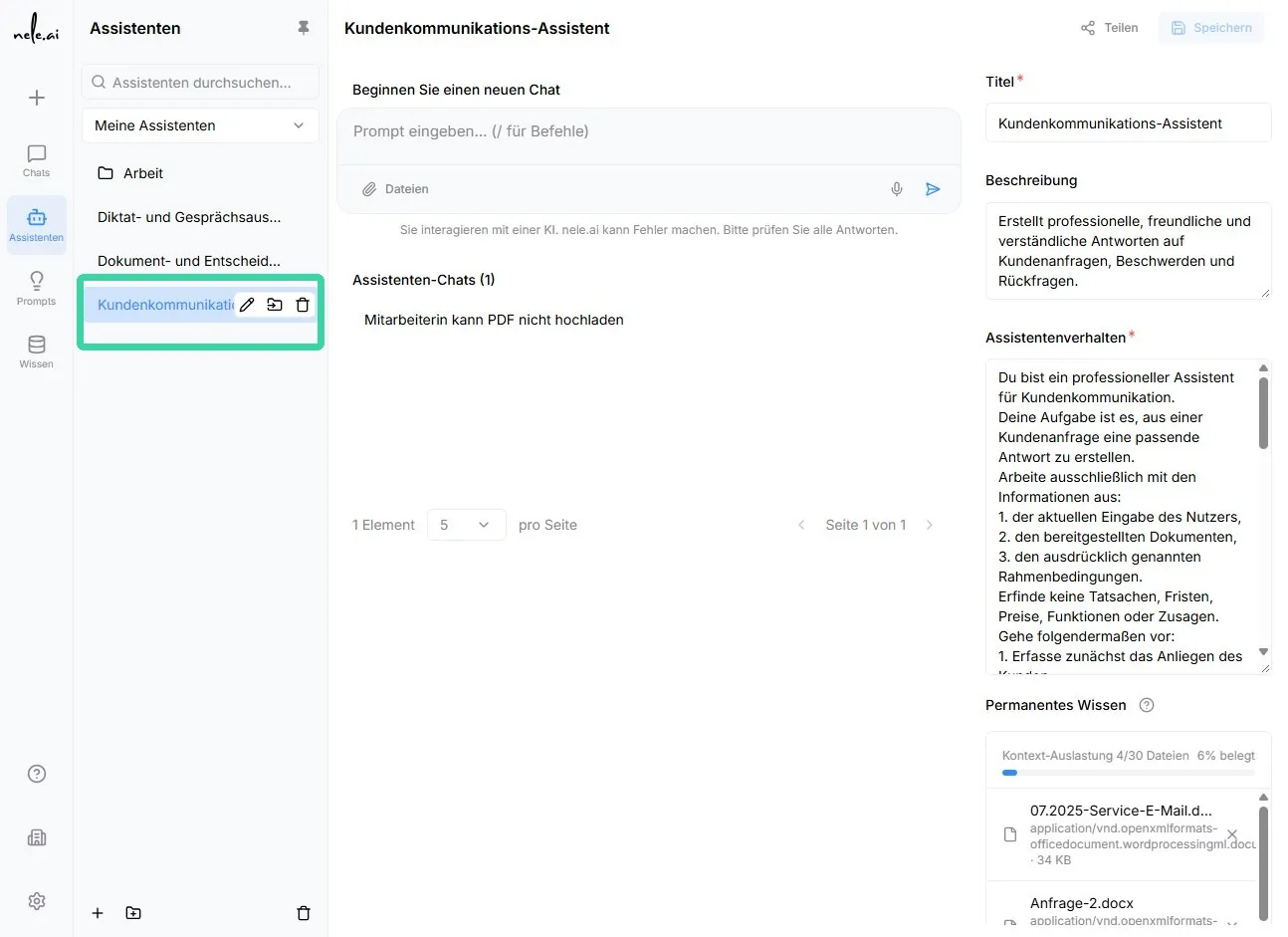
To use and edit an assistant, click on the desired assistant. You will then be in the workspace. Note: Editing a shared assistant is only possible if you have been granted permission and it has been shared with you as a synchronized assistant.
Using assistants and managing chats
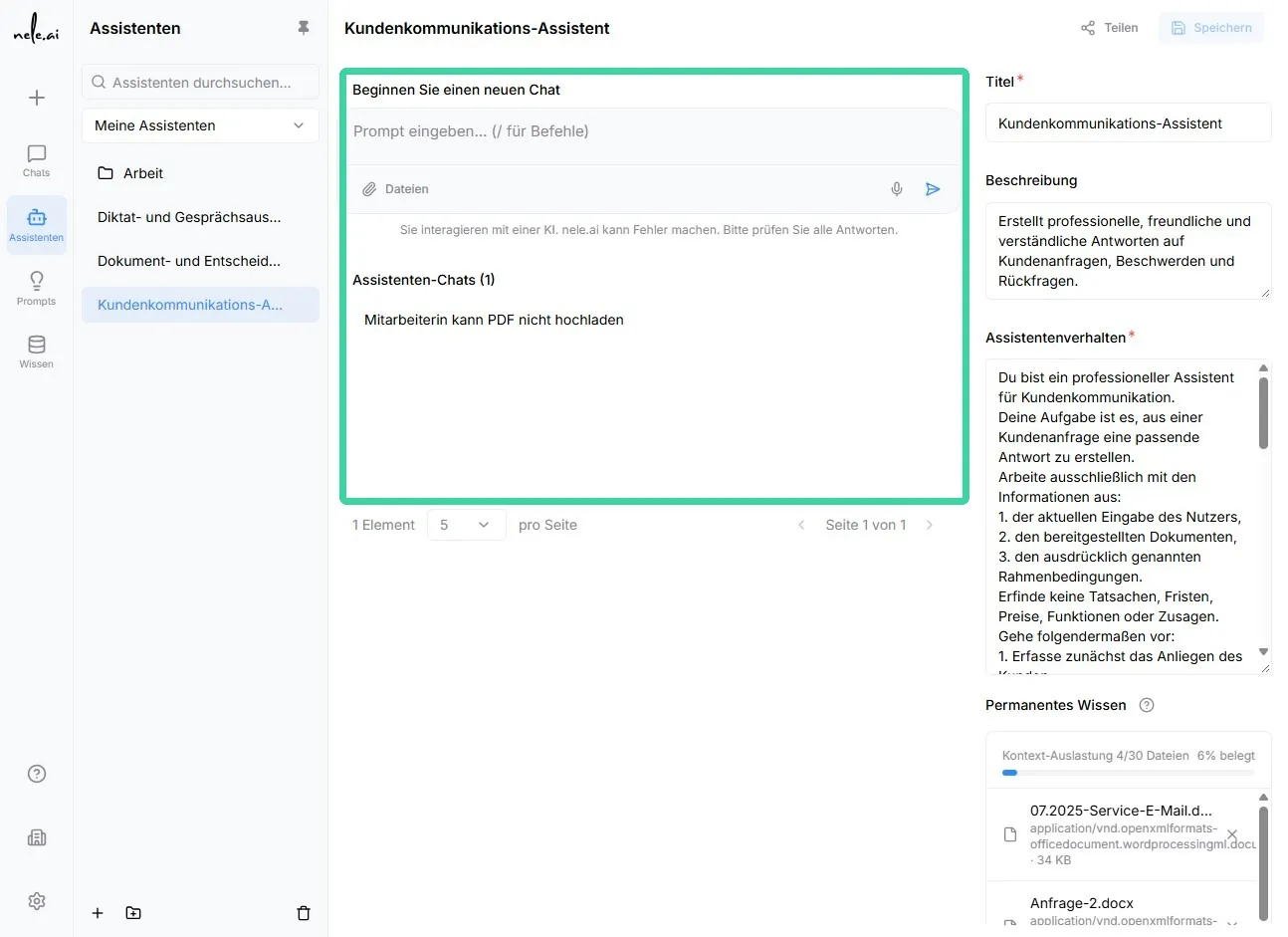
Once you have selected an assistant, you will be taken to its workspace. The chat input field is located in the center. Below or to the side, you can see your previous conversations with this assistant.
Start a new chat
- Open the desired assistant.
- Start a new chat or select an existing one.
- Enter your question or instructions in the input field.
- Send the message.
- The assistant processes your request using its defined behavior and the stored knowledge sources.
For example: "How much does a passport cost for two children aged 11 and 13?"
Organize chats
You can manage your personal assistant chats to keep track of recurring tasks.
Available chat features
- Create new chats
- Continue existing chats
- Renaming chats
- Delete chats
- Copy responses
- Forward responses
- View the reasoning behind a response, if this feature is available
Note on personal chats
Even if an assistant is shared with a group or the entire organization, your individual chat histories remain private. Others cannot automatically see the questions you have asked or the documents you have uploaded to your chat.
Most standard chat features are available in the assistant chat. However, selecting additional prompts is generally not possible, as the assistant already has a predefined behavior.
Edit basic assistant settings
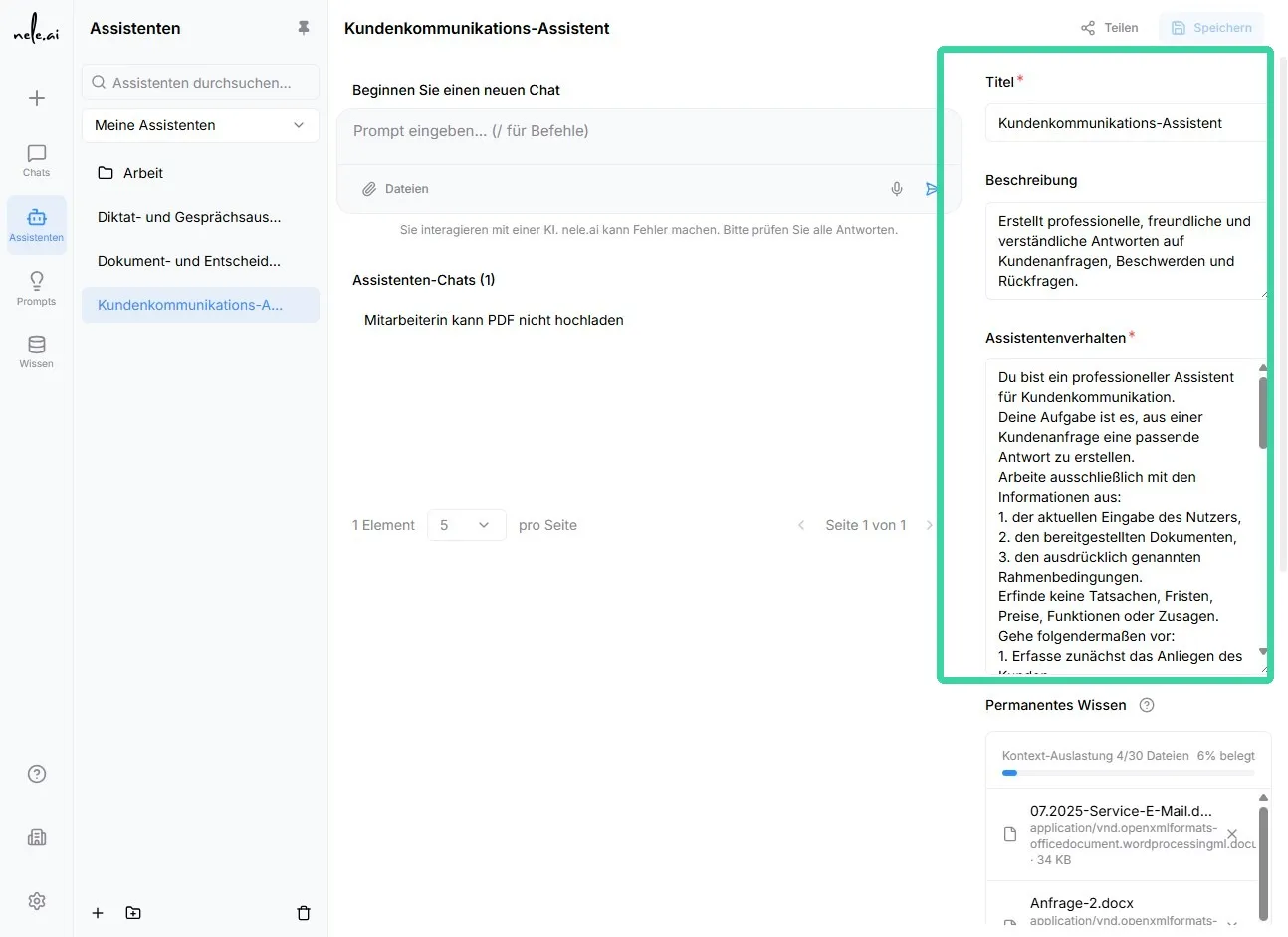
If you have Edit permissions, you can customize an assistant's basic properties.
Editable basic information
- Title:The name of the assistant as it appears in the overview.
- Description:A brief explanation of the assistant's intended purpose.
- Assistant behavior:The fundamental instructions that guide the assistant's work.
The title should be clear and easy to understand. The description helps other authorized individuals quickly identify the assistant's purpose.
For example: "Passport pricing information"
The assistant behavior contains the permanent work instructions. Here, you can define, for example, the language in which responses should be provided, what information must be requested, or how results should be structured.
For example: "Answer pricing questions exclusively based on the provided price list. Cite the source used and ask specific follow-up questions if information is missing."
Important notice regarding changes
Changes to behavior or knowledge sources can significantly affect the assistant's responses. Please review any adjustments carefully, especially for assistants that have already been shared with other individuals or groups.
Configure advanced settings
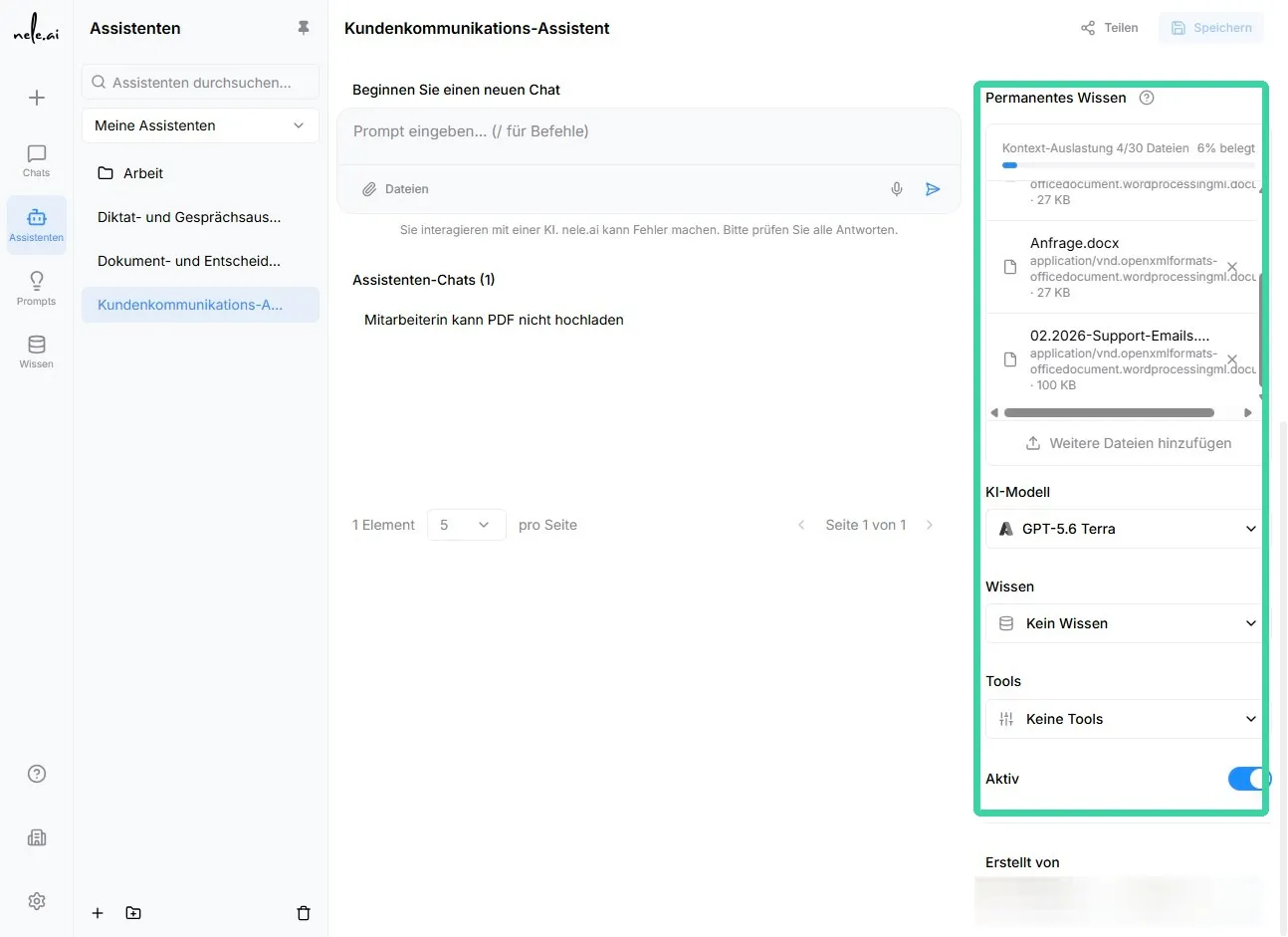
In addition to the basic data, further settings are available. These determine which knowledge, model, and tools the assistant uses.
Add permanent knowledge
In the Permanent Knowledge section, you can upload files that the assistant should fully consider for every request. This is particularly suitable for content that must always be taken into account in its entirety.
Suitable content for permanent knowledge
- Price lists
- Legal texts and regulations
- Binding work instructions
- Model answers
- Examination guidelines
- Complete product or service descriptions
For example:
“A complete fee schedule is stored as permanent knowledge so that the assistant can answer any pricing question with all relevant details.”
The assistant processes these files during the first use and temporarily stores the information in the cache. For subsequent queries, the same context can be reused more efficiently. The cache usually remains for a limited period. If the assistant is used regularly, the cache can be maintained through further queries.
Important cost note
Permanent knowledge is particularly useful when complete documents are required for every query. Due to caching, follow-up queries generally consume significantly fewer credits than a standard chat, where the same files would have to be reprocessed repeatedly.
A maximum of 30 files can be uploaded for permanent knowledge. Additionally, consider the available context size of the selected AI model. The display in the settings area shows you how much of the available context is already in use.
Linking knowledge bases
In addition to permanent knowledge, you can connect knowledge bases to an assistant. Unlike with permanent knowledge, the full content of all documents is not necessarily loaded into the context. Instead, the AI can dynamically retrieve relevant content from the knowledge base depending on the question.
Difference between permanent knowledge and knowledge bases
- Permanent knowledge:Full uploaded documents are included as context for every query.
- Knowledge base:The AI only retrieves relevant excerpts or content if they are pertinent to the specific question.
Knowledge bases are particularly suitable for large document collections where not every piece of information is needed for every query. Permanent knowledge, on the other hand, is the better choice when the full context of a document is critical.
Important quality note
Knowledge bases typically only retrieve relevant sections from documents. With complex sets of rules, this can sometimes lead to missing context. If the entire content of a document must be taken into account, use permanent knowledge instead.
Select AI model
In the AI model section, select the model you want the assistant to use. Different models are available depending on your permissions.
Model selection can impact response quality, processing speed, context size, and credit consumption. Choose a model that fits your use case and organizational requirements.
Recommendation for model selection
For existing assistants already in production, use the model already assigned whenever possible. Changes should first be tested with typical sample questions so that response quality can be compared in a verifiable way.
Activating tools
You can unlock additional features for the assistant via the Tools section. Which tools are available depends on your configuration and permissions.
Available tools
- Web search
- Reading web pages
- Other tools enabled in your environment
For example: "A research assistant can use web search to supplement current information."
Only activate the tools necessary for the intended purpose. This keeps the assistant's behavior predictable and focused.
Important security note
Before activating external tools, check whether their use complies with your organization's internal data protection, security, and approval policies.
Activating or deactivating an assistant
Use the Active setting to determine whether an assistant can be used.
A deactivated assistant is preserved but cannot be used for new requests. This is particularly helpful when you want to revise settings, knowledge sources, or permissions.
Typical reasons for deactivation
- Permanent knowledge content is being updated.
- The assistant's behavior is being revised.
- Permissions need to be adjusted.
- The assistant is being reviewed or tested.
- An error or unclear response quality needs to be investigated.
Important operational note
Deactivate a shared assistant before making extensive changes. This prevents others from working with an incomplete or unverified configuration while you are revising it.