Find assistants and discover categories
In the Assistants section, you can manage your existing assistants and get a quick overview of which assistants are available to you personally, your group, or the entire organization. The view is organized by category, allowing you to find the right assistants quickly and easily.
Feature overview
Opening the "Assistants" section
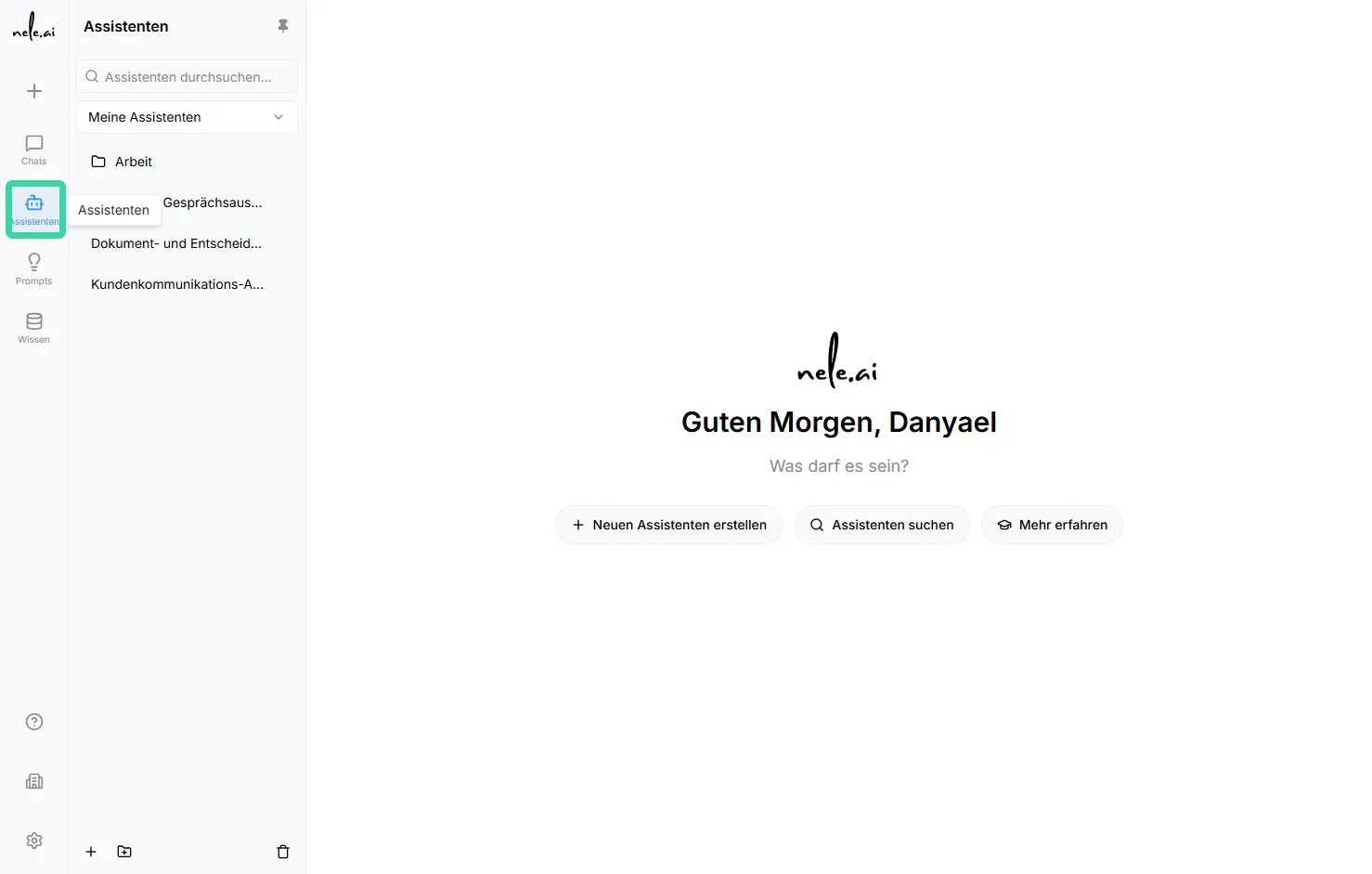
To access your overview of assistants, use the menu on the left side of the application.
- Find the icon in the left navigation menuAssistants.
- Click the icon.
- The pageAssistantsopens.
Structure of the assistant list
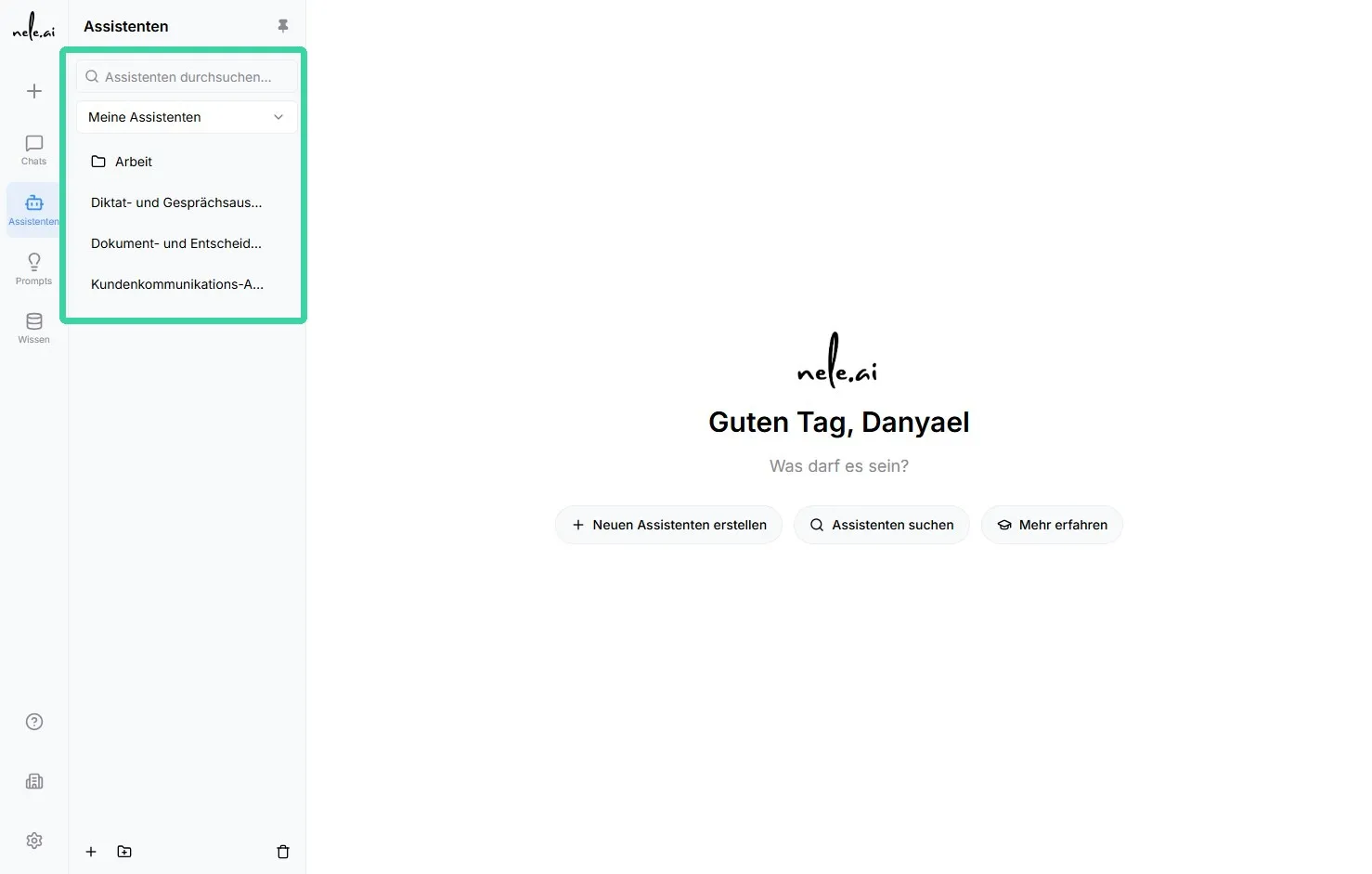
After opening the section, you will see the list of available assistants. The left sidebar displays already created assistants as well as existing folders.
Folders help you structure your assistants clearly. For example, you can group assistants by a common topic, area, or work process.
In the assistant list, you will find
- Assistants already created
- Folders for organizing assistants by topic
- Assistants provided to you by other individuals, groups, or the organization
- Categories for filtering displayed content
Navigation tip
Use the left sidebar to quickly switch between individual assistants and folders. This helps you keep track of things, even when you have a large number of assistants.
Use categories for assistants
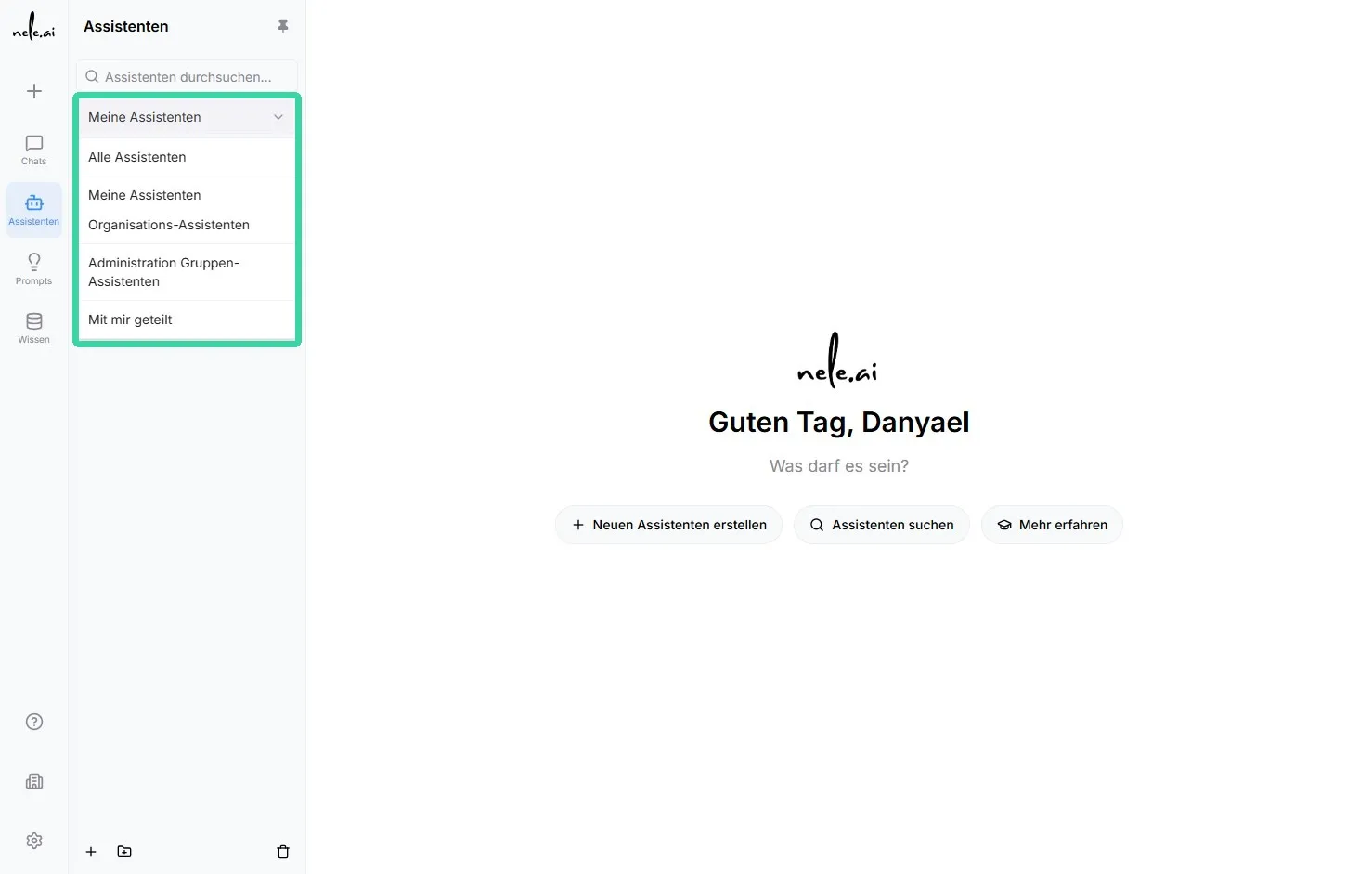
You can filter the displayed assistants by their origin and sharing status via the My Assistants section. Click on My Assistants to view the available categories and narrow down the list accordingly.
Figure 3: Categories in the "My Assistants" section
The screenshot shows the selectable categories for assistants, including group-related areas.
Available categories
- All Assistants
This category shows all assistants you have access to. This includes both assistants you created yourself and those that have been shared with you. - My Assistants
Only the assistants you have created yourself are displayed here. This view is particularly useful if you want to edit or manage your own content. - Organization Assistants
In this category, you will find assistants that have been shared with the entire organization. These assistants are available to all authorized members of the organization. - Group Assistants
Here you can see assistants that have been shared within a specific group. The name of the respective group is displayed as its own category, for example"Administration Group Assistants". - Shared with me only
This view contains assistants that have been specifically shared with you. Organization assistants are not listed here, as they are in the separate categoryOrganization Assistantsare displayed.
Tip for choosing the right category
Select All Assistants if you need a complete overview. If you are looking for specific content of your own, use My Assistants. For shared content, select Organization Assistants, the appropriate group, or Shared with me only, depending on how it was shared.
Example of using categories
If you are looking for an assistant you created yourself, go to My Assistants. If you want to use an assistant that has been made available to all employees, open Organization Assistants.
For example:
An assistant for internal administrative tasks may appear in the "Administration Group Assistants" category if it has been shared with that group.
Important note on visibility
The assistants displayed depend on your permissions and the respective sharing settings. If an expected assistant is not visible, first check the appropriate category or contact the person or group that shared the assistant.