Manage Your Team's Prompts
In this area, you can configure prompts for your team. The prompt section is divided into three central areas that allow you to manage different levels of prompts: nele.ai System Prompts,nele.ai system prompts, Company Prompts,Company prompts and Group PromptsGroup prompts.In this area, you can configure prompts for your team. Determine which prompts members of your team use in their individual NELE.ai application: and
The Three Prompt SectionsThe three prompt sections
Use the tabs at the top to switch between the three areas:Use the tabs at the top to switch between the three areas:
nele.ai Prompts (System Prompts)nele.ai prompts (system prompts)
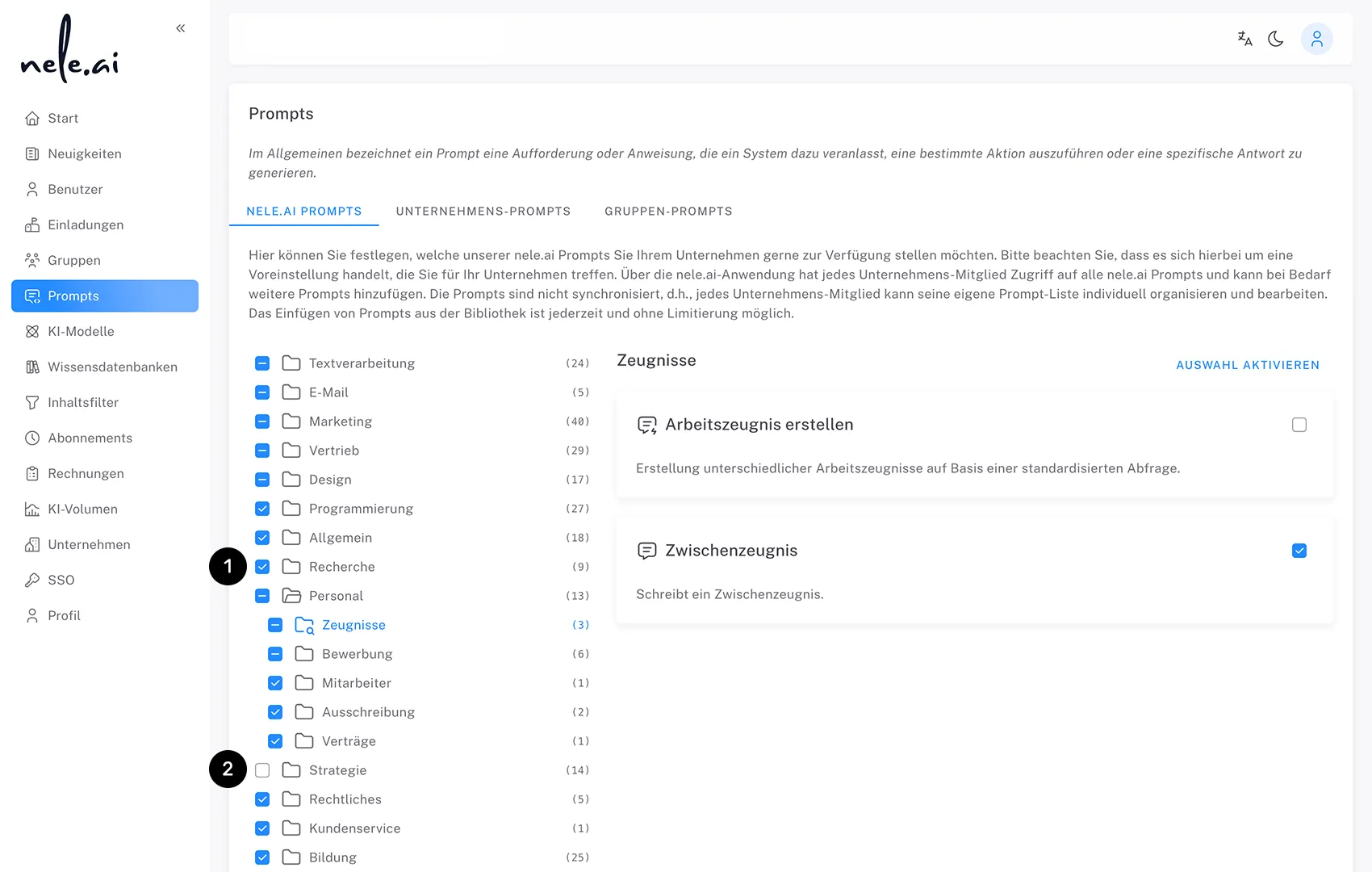
You can find the prompts provided by nele.ai in the first tab. Check the box next to a prompt category to make it immediately available to new members of your team (1). A category without a checkmark remains hidden from new members by default (2).The prompts provided by nele.ai can be found in the first tab. Tick next to a prompt category to make it directly available to new members of your team . A category without a checkmark is initially hidden from new users
Important: Important: Enabling or blocking system prompts only affects members who are invited after the changes are made. Existing members are not affected by these settings, as the prompts are already saved in their application.Approving or blocking system prompts only affects users who are invited again after the adjustment. Existing users are not affected by these settings, as the prompts are already saved in their application.
Note:Note: Activating or deactivating a prompt category only determines which system prompts automatically appear in the prompt tree for newly invited members. All system prompts—regardless of whether they are activated or not—are available to all members (both existing and new) at any time via the prompt library and can be manually added to their own tree structure from there. Activating or deactivating a prompt category only determines which system prompts automatically appear in their prompt tree for newly invited users. All system prompts — regardless of whether they are activated or not — are available to all users (both existing and new) at any time via the Prompt library and can be manually inserted into their own tree structure from there.
nele.ai prompts are fixed and cannot be edited by administrators. However, within the application, locally saved prompts can be individually customized by each member in their own tree structure.The nele.ai prompts are fixed and cannot be edited by administrators. Within the application, however, locally stored prompts can be individually adjusted by each member in their own tree structure.
Company PromptsCompany prompts
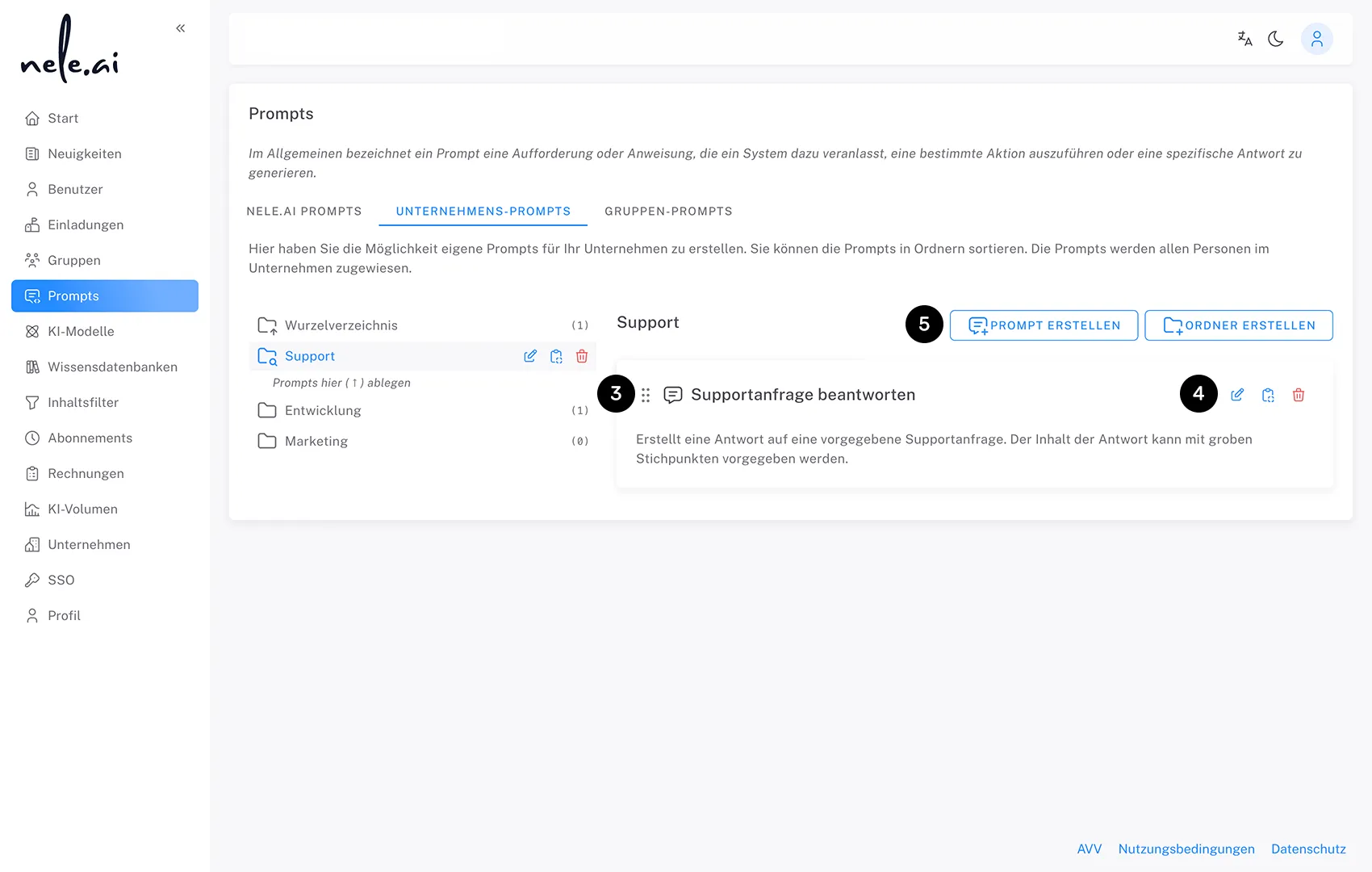
In the second tab, you manage prompts that are available company-wide to all team members. Here, you can create your own folders and prompts, which will automatically appear in the prompt tree for all new members of your company.In the second tab, you manage prompts that are available to all team members across the company. Here you can create your own folders and prompts, which automatically appear in the prompt tree for all new users in your company.
Existing members can access company prompts via the library at any time. When you select a folder, the prompts it contains are displayed as tiles (3). You can use the icons on the tiles to edit, copy, or delete prompts (4).Existing users can access company prompts via the library at any time. When you select a folder, the prompts it contains are presented in tile form . You can edit, copy, or delete prompts using the icons on the tiles
Use the CREATE PROMPTPROMPTLY CREATE and CREATE FOLDERCREATE FOLDERS buttons in the top right corner to add new items (5). You can create both direct prompts and assistant prompts.Use the buttons and at the top right to add new items . You can create both direct prompts and assistance prompts.
Create PromptsCreate prompts
Clicking CREATE PROMPT opens a dialog box where you can choose between two prompt types:When you click CREATE PROMPT, a dialog box opens in which you can choose between two types of prompt:
- Direct Prompt:Direct prompt:A direct prompt is a brief description of a task. It is executed immediately and in full.
- Assistant prompt:Assistant prompt:An assistant prompt guides the member step-by-step through an interactive process.
First, select the desired prompt type and use the language selector to define the default language for the prompt. Then, fill in the following fields:First select the desired prompt type and use the language selection to determine which standard language should be used for the prompt. Then complete the following fields:
- Title:Title:Give the prompt a descriptive name.
- Summary:Summary:Briefly describe what the prompt is used for.
- Direct prompt / Assistant prompt:Direct Prompt/Assistant Prompt:Enter the actual prompt text here. If needed, you can use the ADD TEXT INPUT PLACEHOLDER button to insert dynamic input fields for members.
Finally, click CREATE PROMPT to save the new prompt.Finally, click CREATE PROMPT to save the new prompt.
Create folderCreate folders
Clicking CREATE FOLDER opens a compact dialog box. Here, you can set the default language for the folder and enter a folder name. Confirm your entry with CREATE FOLDER to create the new folder.When you click CREATE FOLDER, a compact dialog box opens. Here you can set the default language for the folder and enter a folder name. Confirm the entry with CREATE FOLDER to create the new folder.
You can also copy folders and prompts into other folders or areas – a dialog box will open for this purpose.You can also copy folders and prompts to other folders or areas — a corresponding dialog box opens for this purpose.
Organize your company prompts into custom folder structures that are shared with all members. Sort individual items by dragging and dropping them into the desired position.Organize your company prompts in individual folder structures that are transferred to all users. Drag and drop the individual elements to the desired location.
Group promptsGroup prompts
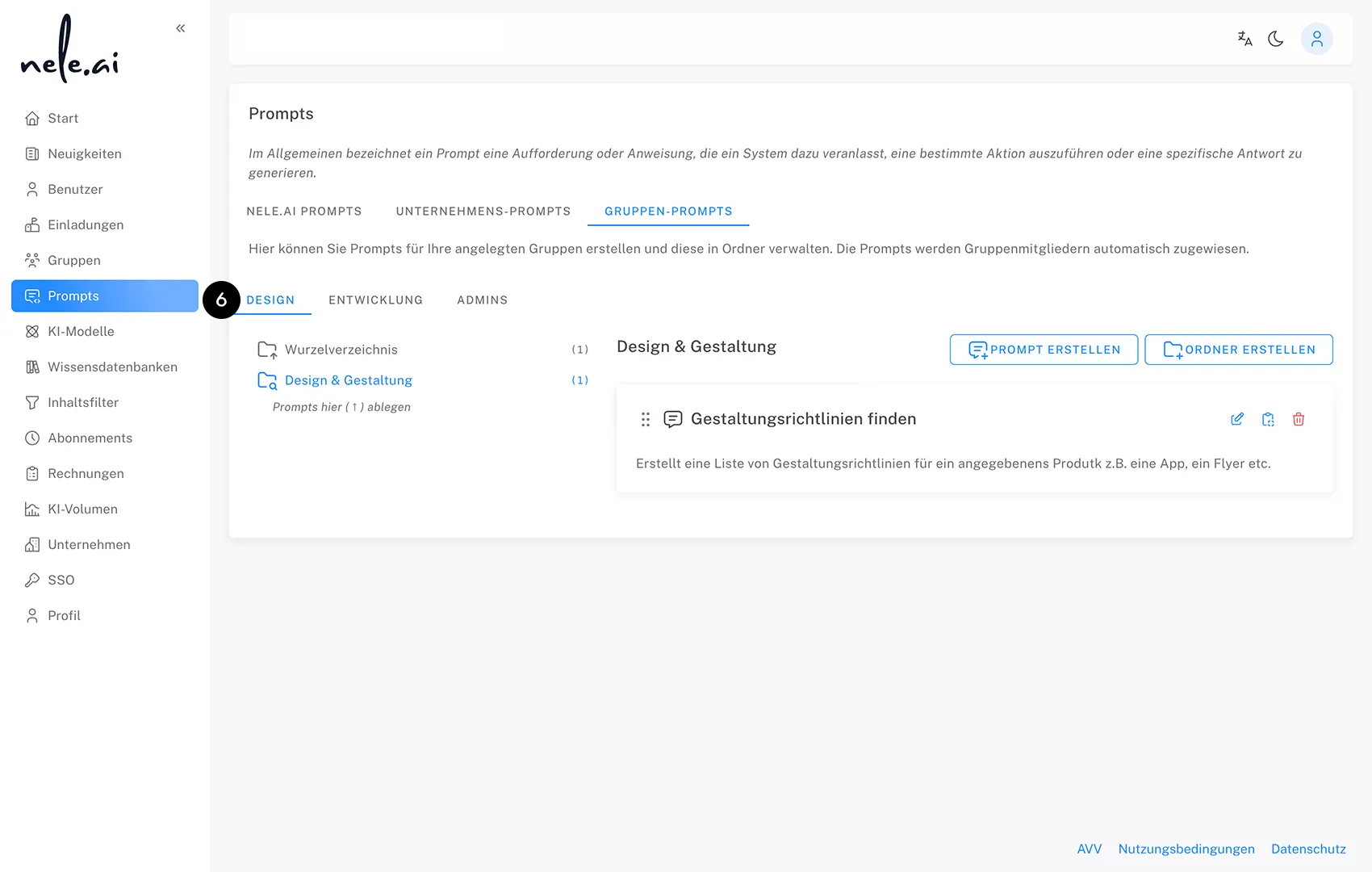
In the third tab, you manage prompts created specifically for individual groups within your team. This area is divided into further sub-tabs – one for each group in your company (6).In the third tab, you manage prompts that are created specifically for individual groups within your team. The area is divided into additional sub-tabs — one for each group in your company
Management within each group tab works the same way as in the company area. Folders and prompts are created and organized in a tile view. Prompts and folders assigned to a specific group are available exclusively to members within that group.The administration within each group tab is analogous to the corporate area. Folders and prompts are created and organized in a tile view. Prompts and folders that are assigned to a specific group are only available to users within that group.
In the frontend, members have access to the prompts of all groups they belong to via the prompt library. Group prompts are additive in nature. If a member loses access rights to a group, the corresponding prompts will disappear from their library.In the frontend, users have access to the prompts of all groups in which they are members via the Prompt library. The group prompts behave additively. If a user loses access rights for a group, the corresponding prompts disappear from their library.
Group prompts that the member has already saved locally in their tree structure will, however, remain available to them.However, group prompts that the user has already saved locally in his tree structure remain with him.