Setting up and managing content filters
To regulate content within nele.ai chats, you can use the "Content filter" feature. You can choose from various ready-made filters or create your own. It is also possible to assign specific filters to specific members.To regulate content within Nele.ai chats, you can use the Content Filter feature. You can choose from various ready-made filters or create your own. It is also possible to assign specific filters to specific users.
Feature overviewFeature overview
Predefined content filters

As an administrator, you can choose from various predefined content filters, each covering a specific topic (1).As an administrator, you can choose from various predefined content filters, each covering a specific topic
Activate a content filter by clicking the checkbox in the "Status" column (2).Activate a content filter by clicking on the checkbox in the “Status” column
When activating, you can decide whether to assign the filter directly to all members and/or all groups, or just publish it for now. For a filter that is both published and assigned, the icon is blue (3). A filter that is only published and not yet assigned to any members is indicated by an orange icon (4).When activating, you can decide whether you want to assign the filter directly to all users or just publish it first. When a filter is published and assigned, the icon is colored blue . A filter that has only been published and is not yet assigned to any users is marked by an orange icon
Custom content filtersCustom content filters
In addition to the ready-made filters, you can create your own custom filters to suit your needs (5). To do this, click the "Create new filter" button (6).In addition to the ready-made filters, you can create your own filters according to your needs . To do so, click on the “Create new filter” button
Custom filters - SettingsMy filters - settings
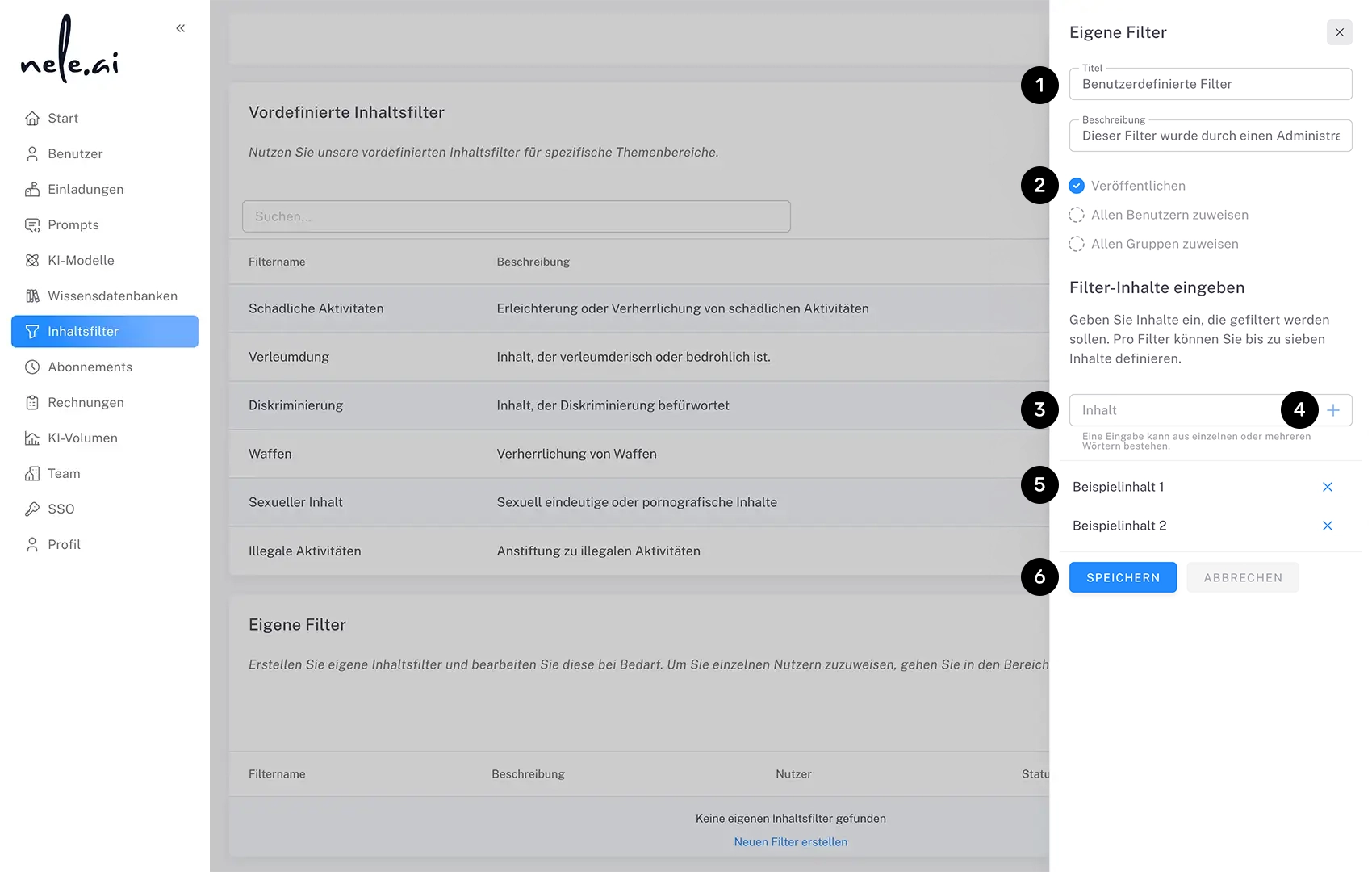
When creating a new filter, first give it a meaningful title and description (1).When you create a new filter, first give it a meaningful title and description
As you proceed, you can decide—just as with the predefined filters—whether you want to simply publish this custom filter first or assign it to all members and/or all groups immediately (2).As you progress, you can decide, similar to the predefined filters, whether you only want to publish this own filter initially or already assign it to all users
Next, define the specific filter content. Enter one or more terms that describe the filter content into the content field (3) and add them to the filter using the plus sign (4). These filter contents will then be listed in the area below, where they can also be removed if necessary (5).In the following, you define specific filter contents. To do this, enter individual or multiple terms that describe the filter content in the content field (3) and add them to the filter with the plus sign . Apparently, these filter contents are listed in the area below and can also be removed at this point
Finally, you can save the fully configured filter or cancel the creation process (6).You can finally save the pre-configured filter or cancel the creation
To assign them to individual members, go to the Members section in the admin area.To assign them to individual users, go to the admin section
Custom filters – Edit and deleteMy filters — edit and delete

To edit or delete a custom filter you have created, click the corresponding icon in the "Options" section (1).To edit and delete a custom filter you have created, click on the respective icon in the “Options” section