Hotkeys
Hotkeys make working with nele.ai much easier. Discover the basic keyboard shortcut for quick copy and paste here, along with an overview of all available keyboard shortcuts in nele.ai.Hotkeys make working with nele.ai a lot easier. Here you can discover the basic keyboard shortcuts for quick copy and paste and an overview of all available keyboard shortcuts in nele.ai.
Feature overviewFeature overview
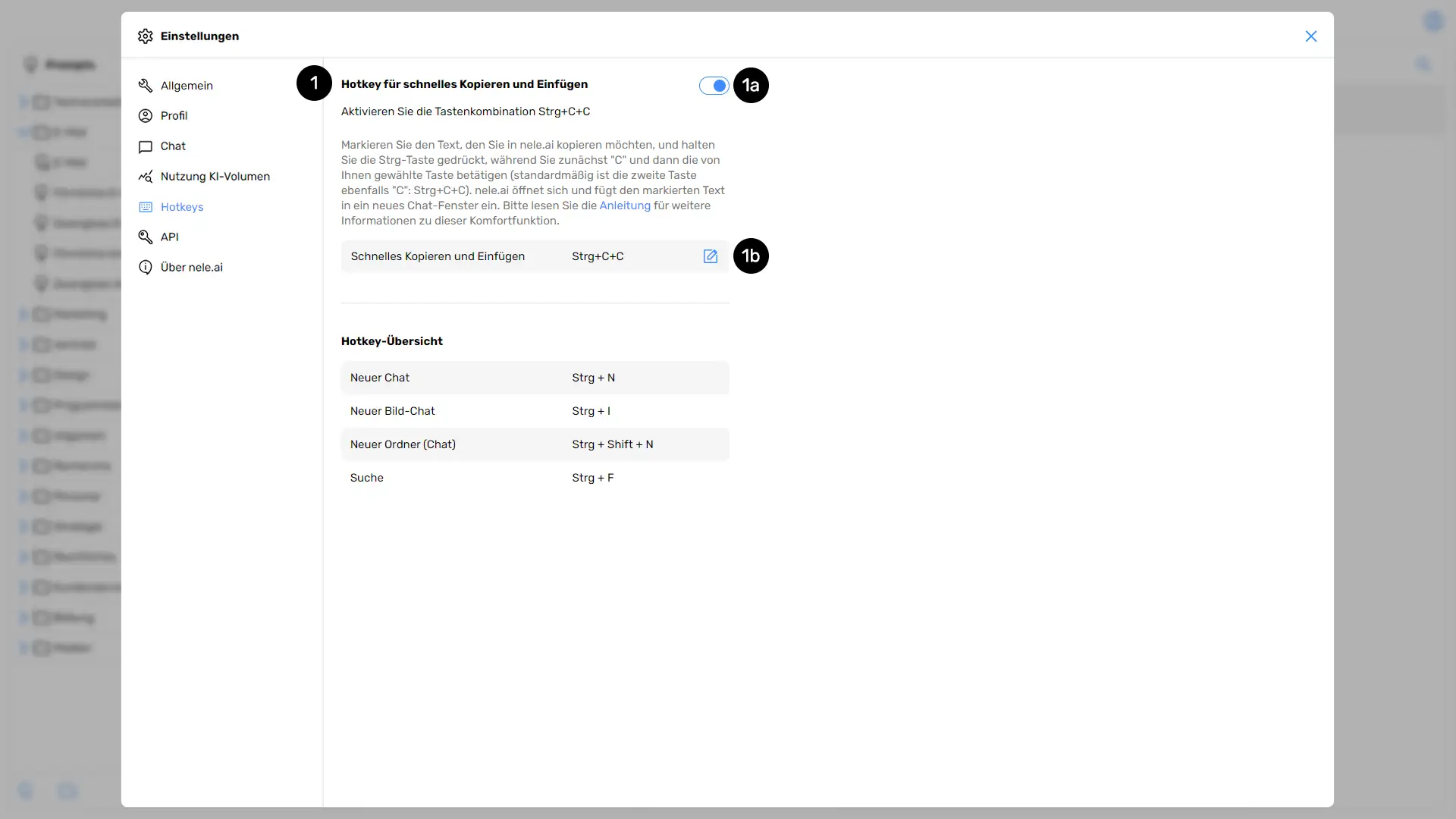
Hotkey for quick copy & paste (Ctrl+C+C or CMD+C+C)Quick copy & paste hotkey (Ctrl+C+C or CMD+C+C)
The keyboard shortcut CTRL+C+C (Windows) or CMD+C+C (Mac) (1) allows nele.ai app users to quickly and easily copy text from any application directly into nele.ai. You can turn this function on or off using the toggle switch (1a).Ctrl+C+C (Windows) or CMD+C+C (Mac) allows users of the Nele.ai app to quickly and easily copy text from any application directly to nele.ai. About the slider , you can turn the function on and off.
Open your nele.ai app and then switch to another application, such as an email program. Highlight the desired text and press the C key twice in quick succession while holding down the CTRL or CMD key. The highlighted text will then be pasted into the nele.ai app, where it can be edited.Open your Nele.ai app and then switch to another application, such as an email program. Now select the desired text and press the C key twice in a row while holding down the CTRL or CMD key. This is how the marked text is inserted into the Nele.ai app and can be edited.
If you would like to use a different keyboard shortcut than CTRL+C+C or CMD+C+C for this function, you can customize it using the pencil icon (1b).If you want to use a keyboard shortcut other than CTRL+C+C or CMD+C+C for this function, you can adjust it using the pencil icon
Please note that this quick copy and paste hotkey is only available in the nele app, not in the browser version. Note that this hotkey for quick copy and paste is only available in the NELE app, but not in the browser version.
This keyboard shortcut is available by default on Windows. On macOS, it must be enabled once externally via the operating system. Please also read the section This keyboard shortcut is available by default on Windows. Under macOS, it must be approved externally via the operating system once. Please also read the section "Setting up CMD+C+C on macOS" further down on this page.
Hotkey OverviewHotkey overview
In the lower part of the window, you will find an overview of the available hotkeys in nele.ai, depending on the operating system you are using.At the bottom of the window, you will find an overview of the hotkeys available in nele.ai, depending on the operating system that you are using.
Setting up CMD+C+C on macOSSet up CMD+C+C on macOS

On macOS, the CMD+C+C function must be set up once via the operating system after installing nele.ai for it to work properly. This only requires a few simple steps. Here is a step-by-step guide:On macOS, the CMD+C+C function must be set up once via the operating system after installing nele.ai so that it works correctly. This only requires a few steps. Here's a step-by-step guide:
- Open the "Privacy & Security" section in your Mac's System Settings.
- Then, select "Accessibility" from the list.
- Add the nele.ai app to the list using the plus icon and enable the toggle switch.
- Open nele.ai, go to the hotkey settings, and ensure that CMD+C+C is also enabled here using the toggle switch.